How to Organize a Large PDF: Reorder, Number and Split Pages
A working order for long PDFs: clean up and reorder the pages, number them once the order is final, then split out the sections people need.
By the PDF Logic team at Appzotech
Published Updated 8 min read
On this page
Why long PDFs get messy
A long PDF is rarely written in one go. It is assembled: a scanned contract, an exported report, three appendices from three people. The seams show. There are blank backs from double-sided scanning, a section that arrived late and was stuck on the end, a sideways table, the same page twice, and page numbers that restart every few pages or don’t exist.
All of that can be fixed in a browser. What matters is the order you work in, because every step changes which page is where:
- Clean up and reorder the pages.
- Number them once the order is final.
- Split out the sections people asked for.
Numbers go on after reordering because they are printed onto the page. Move a numbered page and its number moves with it. The three tools used here, Organize PDF, Page Numbers and Split PDF, all work in your browser, so the document stays on your device throughout.
Plan the new order before you touch anything
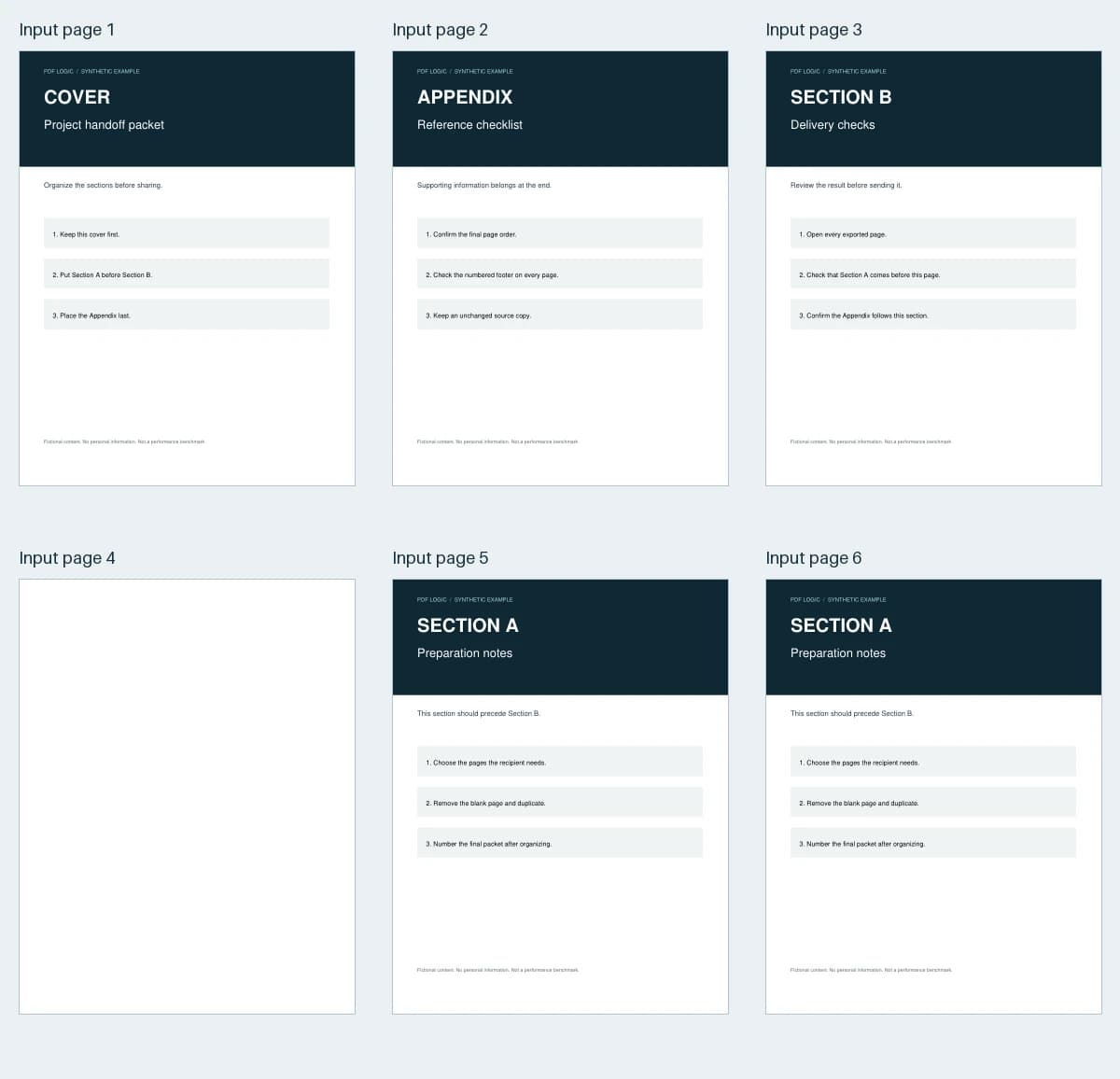
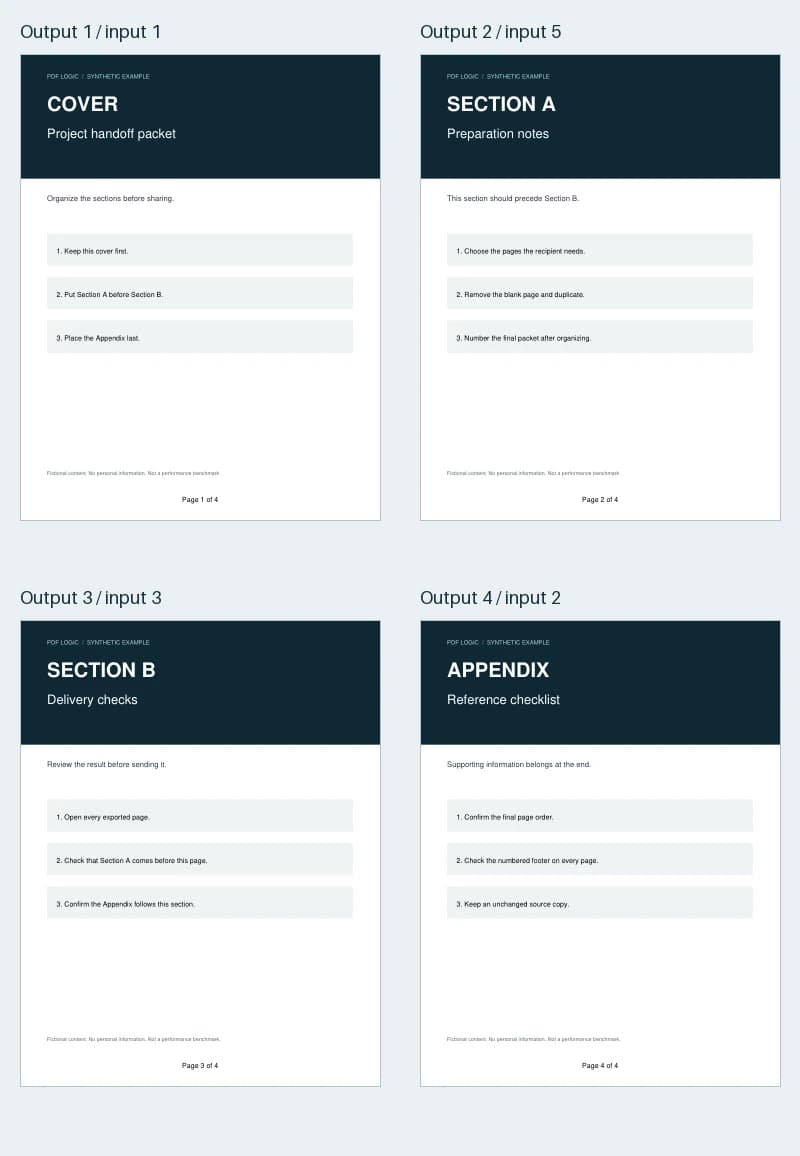
Open the PDF and write down the order you want as a list of its current page numbers. The six-page sample in this guide arrives as Cover, Appendix, Section B, a blank page, Section A, and Section A again. We want Cover, Section A, Section B, Appendix. In original page numbers that is 1, 5, 3, 2, with pages 4 and 6 removed.
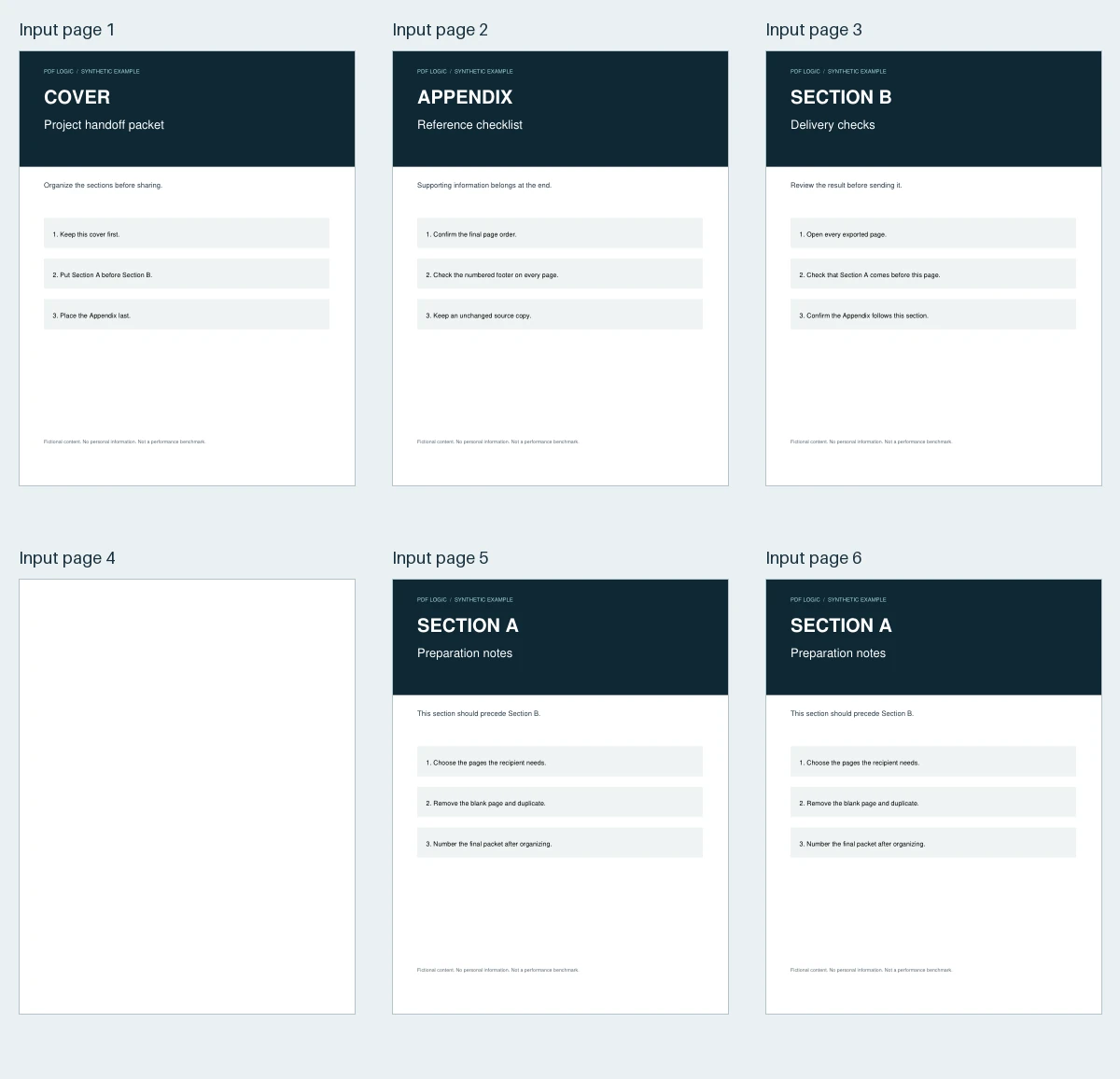
The list matters because positions shift the moment you delete something. Remove page 4 and the old page 6 becomes page 5. Organize PDF helps here: each thumbnail shows its current position (“Page 2”) and where it came from (“Original 5”), so a plan written in original numbers stays valid however much you move things around.
Keep an untouched copy of the original as well. Every tool here saves a new file and leaves your source alone, but a clearly named original makes it easy to start again.
Step 1: Remove and reorder pages
- Open Organize PDF and choose your file, up to 50 MB. Every page appears as a thumbnail.
- Select the pages to remove. Tick them one by one, hold Shift to select a run, or use the Select menu: Odd pages, Even pages, or Page range, where you type something like “4, 6” or “12-18.”
- Choose Delete once. In the sample, that removes the blank page and the duplicate together.
- Put the remaining pages in order. Drag a page by its handle, or select one or more pages and choose Move to send them to the start, the end, or before or after a page number. Move is the practical way to shift a section sixty pages up a long document.
- Fix sideways pages with the Left and Right rotate buttons.
- Click a thumbnail to read that page at full size when two pages look alike.
- Name the file and choose Export PDF.
A few controls earn their keep on long documents. Even pages followed by Delete strips the blank backs out of a double-sided scan of single-sided originals. Reverse flips the whole document when a stack was scanned last page first. Add another PDF and Insert blank page bring in a missing appendix or a divider. The Compact thumbnail size shows more pages at once, and Undo (Ctrl+Z, or Cmd+Z on a Mac) steps back through your changes.
Step 2: Add page numbers
- Open Page Numbers with the file you just exported.
- On the Pages tab, leave All pages selected, or check Skip the first physical page to keep a cover clean.
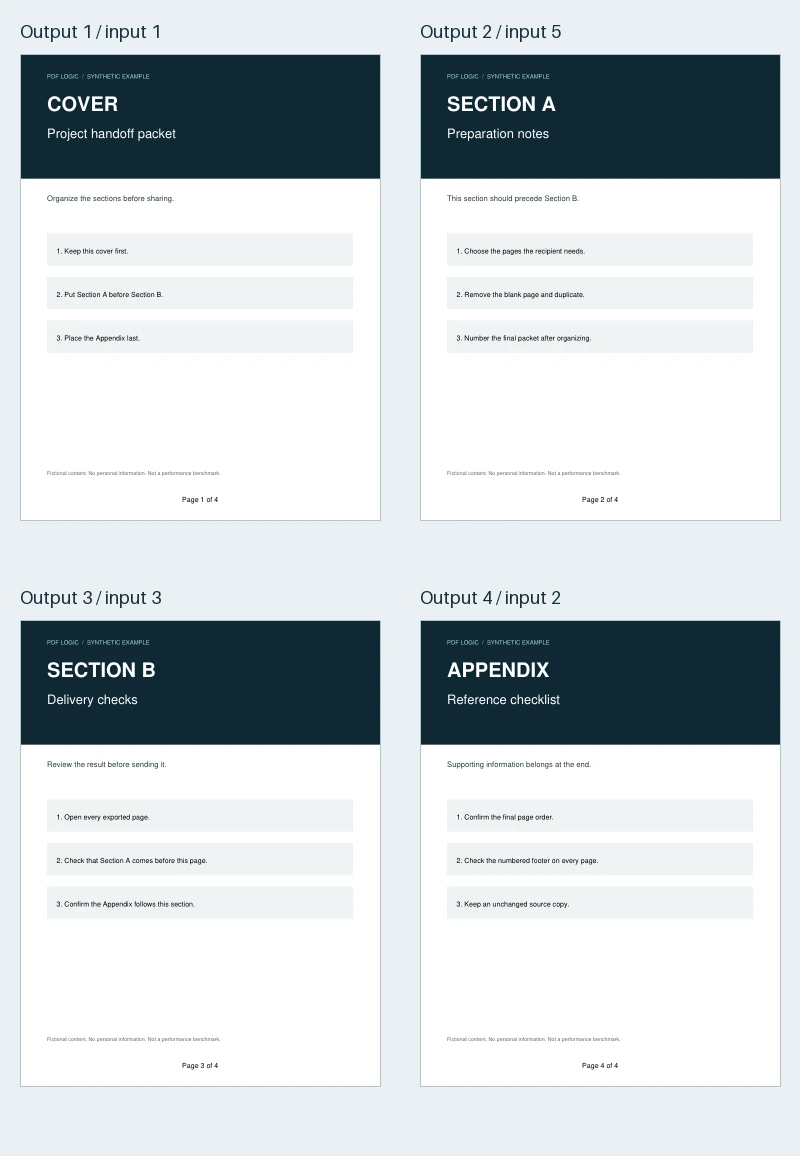
- On the Numbering tab, set First printed number and choose a template. Page n of total prints “Page 1 of 4.”
- On the Position tab, pick one of the six positions and adjust the margins so the number clears your footer text. For double-sided printing, set Facing pages to Outside so the numbers sit on the outer corners.
- Check the preview, choose Add page numbers, then Download PDF.
Long documents often need more than 1, 2, 3. Under Advanced numbering you can add sections, each with its own start page, start number, format and prefix. That is how you give a table of contents roman numerals and start the body at 1, or label an appendix A-1, A-2. If you skip a cover, Count skipped pages in the sequence decides whether the first numbered page prints 1 or 2. The ready-made presets (Report, Thesis and Book) set up the common combinations in one click.
Number last, and number once. If you reorder after numbering, the printed numbers travel with their pages and end up out of sequence. Go back to the un-numbered copy, fix the order, and number again.
Step 3: Split out the sections people need
Open Split PDF and choose the method that matches the request:
Scroll the table to compare all columns.
| You need | Method | How it works |
|---|---|---|
| One section as its own file | Extract pages | Type the pages, such as 2-3, under Selected pages |
| Each chapter as a separate file | Split visually or Custom groups | Click where each new file begins, or type a range and a file name for each group |
| Equal parts that fit an upload limit | Every N pages | Enter the pages per file. The last file takes whatever is left |
| Every page on its own | One PDF per page | Each selected page becomes a file |
You get the PDFs individually, plus a ZIP of all of them when there is more than one. A single run can produce up to 200 files.
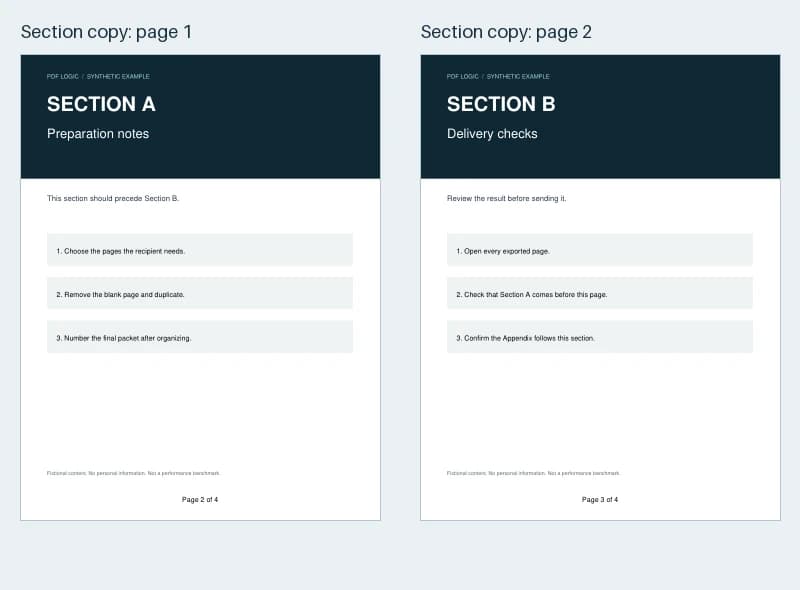
In the sample, extracting pages 2-3 from the numbered copy gives a two-page file with Section A and Section B.
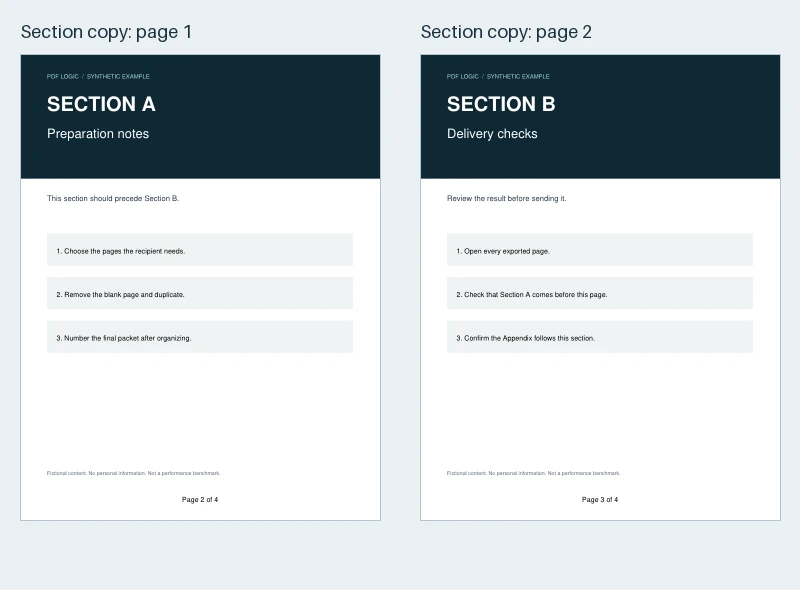
Look at the footers: they still read “Page 2 of 4” and “Page 3 of 4.” Extraction copies pages exactly as they are, printed numbers included. That is right when the section should point back to the full document. When it has to stand alone as “Page 1 of 2,” extract from the un-numbered copy first and number the extract afterwards.
The sample is available at each stage if you want to compare your own result: organized, numbered and extracted.
If a tool won’t change your PDF
Some documents carry structure that depends on the page order. Rather than save a file with that structure broken, the tools stop and tell you why.
- Tagged PDFs and PDFs with page labels. Files exported with accessibility tags, which Word adds by default, or with custom page labels can be rotated in Organize PDF but not reordered, trimmed or split. Change the order in the source document and export again, or use a desktop editor that rebuilds the structure, such as Acrobat Pro. Our accessibility guide explains what tags are. For the same reason, leave Update PDF page labels off in Page Numbers until the copy is final.
- Password-protected PDFs. Remove the password with Unlock PDF, organize the file, then protect the result again.
- Digitally signed PDFs. Organize PDF and Split PDF ask you to confirm first, because an edited copy no longer validates against the signature. Page Numbers won’t number a signed file. Keep the signed original either way.
- Bookmarks and links. Those that point to pages you kept are preserved. Those that pointed to deleted pages are removed.
- Files over 50 MB. Use a desktop application. On a Mac, Preview reorders and deletes pages when you drag thumbnails in its sidebar.
Check the finished document
- Count the pages. Original pages, minus deletions, plus insertions. Organize PDF shows the page count and a summary of what was removed, added and rotated before you export.
- Check the seams. Look at the first and last page of each section, which is where ordering mistakes show up.
- Follow the numbers. Scroll the footers from start to finish and confirm that the total in “of N” matches the real page count.
- Click a few bookmarks and links if the document has them.
- Open every split file and confirm that together they cover what the recipient needs.
Frequently asked questions
Does reordering or splitting reduce quality?
No. Pages are moved or copied as they are. Text stays text and images aren’t recompressed, so a page in the output looks the same as it did in the source.
Are my files uploaded when I organize, number or split?
No. Organize PDF, Page Numbers and Split PDF do their work in your browser, and the document stays on your device. It also means that how large a file you can handle depends on your device’s memory.
Why do my extracted pages still say “Page 2 of 4”?
Because the numbers were printed onto the pages before you extracted them, and extraction doesn’t rewrite page content. Extract from the un-numbered copy, then add numbers to the extract. How to extract pages from a PDF covers this in more detail.
How do I combine several PDFs before organizing them?
Use Add another PDF inside Organize PDF to bring up to ten files into one document, or join them first with Merge PDF. How to merge PDFs explains what carries over when files are combined.
Worked example
Follow the page order through each export
The six-page packet became four pages, taken from original pages 1, 5, 3 and 2. Page Numbers then added Page 1 of 4 through Page 4 of 4. Extracting pages 2 and 3 of the result kept Section A and Section B, each with the footer it already had.
Files from this example
Download them to compare the result with the original, or to try the same steps yourself.
Try it
Tools for this guide
Each one is free and works without an account.
Spotted a mistake or something out of date? Tell us and we will fix it. Our editorial policy explains how these guides are written.