Protect & sign
Redact PDF
Permanently remove names, account numbers and other private details from a PDF before you share it. The marked content is deleted from the file, not just covered.
Uploaded securely and deleted after processing
Drag and drop here
PDFOne PDF up to 30 MB
What Redact PDF does
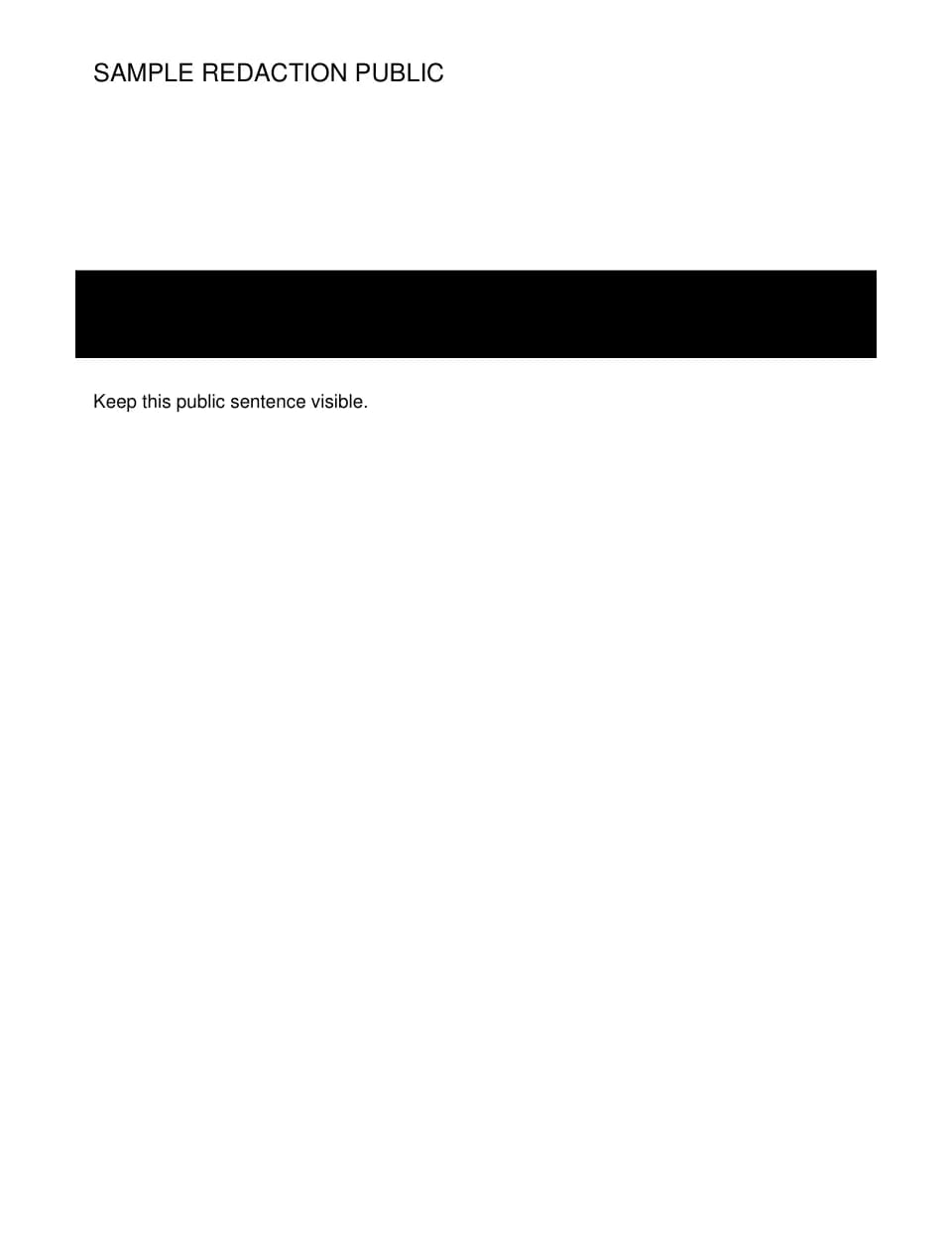
Redact PDF removes the text and image content inside the areas you mark and replaces each one with a solid block. Draw a box, use Find text to locate every occurrence of a name or number, or use Recognize scanned text to search scanned pages. Nothing is removed until you select Apply redactions.
This is different from drawing a black rectangle in a PDF editor. A drawn shape sits on top of the page like a sticky note: the words underneath are still in the file, and anyone can copy the hidden text or delete the shape. Real redaction takes the underlying characters and pixels out of the document, so there is nothing left to uncover.
Hidden information goes too: document properties, attachments, comments, links and form fields are removed, because any of them can carry the same details. Marking happens in your browser. The PDF is uploaded when you select Apply redactions, and the temporary working files are deleted when the job ends.
Is this the right tool?
Good for
- Removing account or ID numbers from statements and invoices before sending them as proof of something else.
- Taking client or patient names out of a document you want to share as an example.
- Removing salary figures or signatures from a contract sent to a third party.
Not the right tool for
- Covering a stray line or logo where secrecy does not matter. Whiteout in the editor keeps your links and form fields.Edit PDF
- Hiding faces in a photo.Blur Face
- Controlling who can open the whole document.Protect PDF
How to redact a PDF
Open your PDF
Choose the PDF that holds the private details, up to 30 MB. Nothing is uploaded yet.
Mark what must go
Drag over text or an image, or select Add area. For repeated details, select Find text, type the name or number, and choose Mark selected matches.
Review and apply
Select the Review redactions button to see the marks as solid blocks. Confirm the change is permanent in the new copy and select Apply redactions.
Inspect and download
Use the page buttons under Review affected pages to look at each one, then select Download redacted PDF.
Worked example
Proof of address without the account details
Say a property manager wants a bank statement as proof of address. It shows your name and address, which they need, and your account number and every transaction, which they do not.
Select Find text, type your account number and choose Mark selected matches; it is marked wherever it appears, including the footer. Then drag a box over the transaction table on each page.
Review, apply, and search the exported copy for your account number. The search comes back empty, because those characters are no longer in the file. That is the copy to send.
Tips for a better result
- Search for each private detail in every form it takes: with and without spaces, full name and last name alone.
- Draw each box a little larger than the text so that no edge of a letter is left showing.
- The length of a block can hint at what was under it; for a list of names, make every block the same width.
Redact PDF: questions and answers
Can redacted text be recovered?
Not from the redacted copy. The characters and image pixels inside each marked area are deleted and replaced by a solid block, so there is nothing underneath to reveal. Your original PDF still contains everything, so take care to send the redacted copy.
Why are links, comments and form fields missing from my redacted PDF?
They are removed on purpose. Any of them can hold a copy of the information you took off the visible page, so the whole document is cleaned.
How do I redact text in a scanned document?
Draw boxes by hand over what you need to remove; the image pixels under each box are deleted. To search instead, run Recognize scanned text in the document's language, then use Find text as usual. Recognition can misread characters, so look at each suggested area yourself.
Should I redact before or after signing or password-protecting a PDF?
Before. Redaction rewrites the file, which invalidates an existing digital signature, and a password-protected PDF has to be unlocked before it can be redacted. Redact first, then sign or protect the redacted copy.