Convert
Excel to PDF
Turn an Excel workbook into a PDF with the sheets, paper size and scaling you choose. Generate the PDF, look at the real pages, adjust and generate again until it fits.
Uploaded securely and deleted after processing
Drag and drop here
XLSX, XLSOne workbook up to 30 MB
What Excel to PDF does
Excel to PDF prints your workbook to a PDF on our server. A spreadsheet is an endless grid with no pages of its own, so the result depends on print settings: paper size, orientation, scaling and margins decide where the grid is cut into pages.
For XLSX files you can pick worksheets by name and override those settings without touching the workbook. Leave everything on Use workbook setting to print the file as it was saved, or choose Fit all columns to page width to stop a wide table from breaking across pages. Older XLS files convert with their saved print setup only.
The workbook is uploaded for inspection and conversion, and the temporary copy is deleted when the job ends. You get one PDF with the selected sheets in workbook order, shown in a preview before you download.
Is this the right tool?
Good for
- Sending a quote, timesheet or budget that the recipient should read but not edit
- Fitting a wide report onto landscape pages without retyping anything
- Exporting two or three sheets from a workbook that holds many
- Converting up to 10 workbooks in Batch mode with one set of print settings
Not the right tool for
- Getting data out of a PDF and back into cells. That is the reverse job.PDF to Excel
- Keeping only some pages of the result. Generate the full PDF, then cut it down.Split PDF
- A report written in a word processor. Its pages are already defined, so it needs no print settings.Word to PDF
How to convert Excel to PDF
Choose your workbook
Select Choose Excel file and pick an XLSX or XLS file up to 30 MB, or switch to Batch for up to 10.
Select worksheets
Tick the sheets to export in the Worksheets list, and click a sheet name to see a sample of its first rows. Hidden sheets can be chosen after you tick Include hidden worksheets.
Set the page layout
Keep Printed pages for normal paper pages, or choose One continuous page per sheet for a single tall page with no breaks.
Adjust paper and scaling
Set Paper size, Orientation, Scaling, Margins and Gridlines, or leave them on Use workbook setting.
Generate and check
Select Generate PDF and page through the Generated PDF tab. Change a setting and generate again if a column is cut off.
Download
Edit Output filename if you like, then select Download PDF.
Worked example
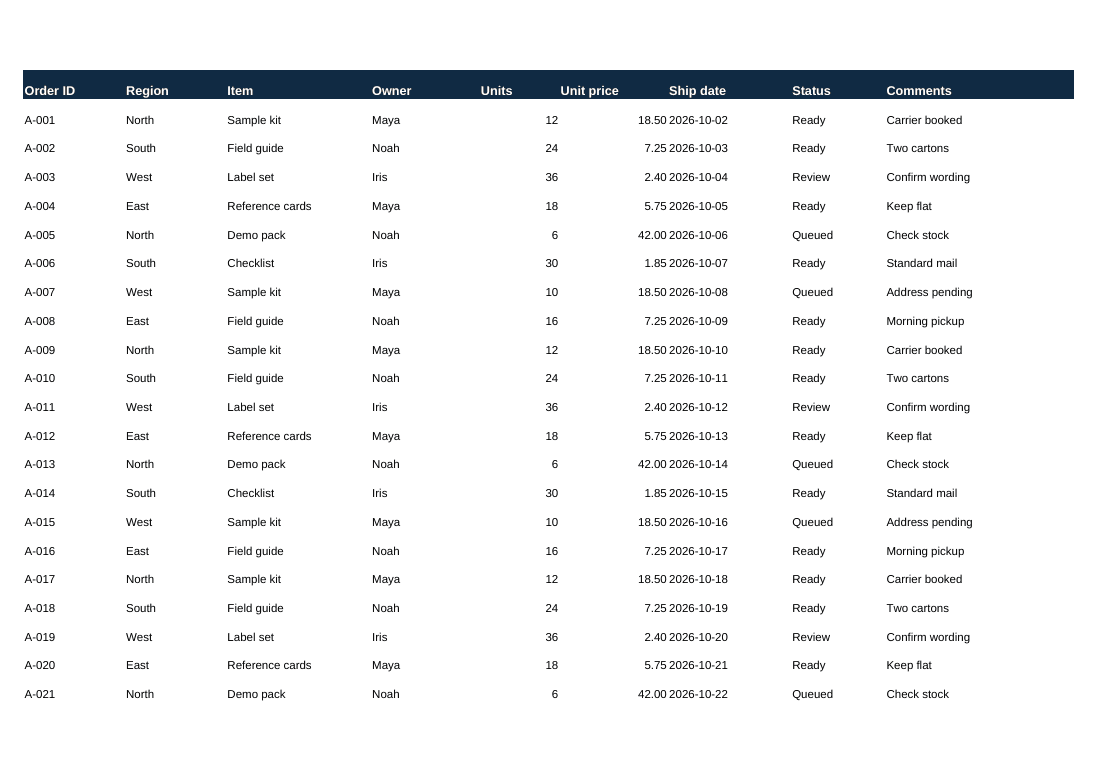
A nine-column shipping plan that splits across pages
Say your shipping plan has nine columns, from Order ID to Comments, and the workbook was saved with portrait pages. With every option on Use workbook setting, the first PDF page ends after the fifth column and the other four land on a separate page, far from the order numbers they belong to.
Set Paper size to A4, Orientation to Landscape and Scaling to Fit all columns to page width, then generate again. All nine columns now sit side by side, and the rows simply continue onto a second page.
If the text has become too small to read, try Narrow margins before you give up on width fitting. Fit sheet on one printed page shrinks rows as well as columns, so keep it for short tables.
Tips for a better result
- Set a print area in Excel if the sheet has scratch notes off to the side. Printed pages respects it; One continuous page per sheet ignores it.
- Look at the last PDF page. A single stray value far to the right or bottom of a sheet creates nearly empty pages.
- Save an XLS as XLSX in Excel to unlock sheet selection and the layout controls.
- Some systems export a web page or plain text under an .xls name. Such a file is refused with a note; open it in Excel, save it as .xlsx and add that copy.
Excel to PDF: questions and answers
How do I fit a whole spreadsheet on one page?
Set Scaling to Fit sheet on one printed page. Everything shrinks until the sheet fits, so it suits short tables; a sheet with hundreds of rows becomes too small to read. For long tables, Fit all columns to page width keeps the width on one page and lets the rows run onto further pages.
Are hidden sheets included in the PDF?
Not unless you ask for them. Tick Include hidden worksheets, then select the hidden sheets you want in the Worksheets list. In Batch mode only visible worksheets are exported.
Do charts and cell formatting appear in the PDF?
Charts, cell colors, borders and number formats are drawn as part of each page. Our server lays out the workbook with its own spreadsheet engine instead of Excel itself, so look at charts and unusual fonts in the Generated PDF tab before you send the file.
What does One continuous page per sheet do?
It turns each worksheet into a single PDF page sized to its content, with no page breaks. That is handy for reading a long table on screen. It ignores saved paper sizes and print areas, and a very wide sheet will be hard to print.
Can I convert a Google Sheets or CSV file?
Not directly; the tool accepts XLSX and XLS. From Google Sheets, choose File, Download, Microsoft Excel first. Open a CSV in any spreadsheet program and save it as XLSX, then convert that.