Compress vs Resize Images: Which Reduces File Size?
Decide whether to change encoding quality, pixel dimensions, framing, or all three, then verify the actual output.
What is the difference between compressing and resizing?
Compression changes how pixels are encoded. In PDF Logic, JPG and WebP use adjustable quality, while PNG uses lossless encoding and optimization. Resizing changes the number of pixels. Cropping removes pixels outside a selected frame. Each can reduce bytes, but none guarantees a particular file size for every source.
Scroll the table to compare all columns.
| Action | Changes dimensions? | Can remove content? | Best first use |
|---|---|---|---|
| Compress | No, unless you separately resize | No visible framing change, but lossy settings can remove detail | Dimensions are already correct |
| Resize | Yes | Fill can crop; Fit and Fit with padding preserve the whole image | The destination needs smaller pixel dimensions |
| Crop | Yes | Yes | Unneeded edges can be removed |
Choose the resize mode deliberately
- Fit: keeps the whole image within the requested bounds. When proportions differ, one output dimension can be smaller than the box.
- Fit with padding: keeps the whole image and adds the chosen background so the output has the exact requested width and height.
- Fill: crops edges to fill the requested dimensions when no enlargement is needed or enlargement is enabled. Set the focal position, then inspect each image.
- Stretch: changes proportions to use the requested dimensions when no enlargement is needed or enlargement is enabled.
Enlargement is off by default, so Fill and Stretch stop at source dimensions when the requested result would otherwise enlarge the image. Fit with padding still creates the exact requested canvas. Increasing dimensions adds pixels but cannot restore source detail. The browser’s canvas model defines how images are drawn into destination rectangles; see the WHATWG canvas drawImage() specification for the underlying scaling operation.
Use the smallest necessary change
- Record the destination’s accepted format, maximum bytes, and required pixel dimensions.
- If dimensions are too large, open Resize images and choose Fit, Fit with padding, Fill, or Stretch. Review whether the complete subject remains visible.
- If framing includes unneeded pixels, use Crop images. Batch framing scales across different source sizes, so inspect every crop.
- If dimensions are already suitable, open Compress images. Start at a useful quality, compare Original and Output at 100%, and lower quality only as needed.
- For a hard byte limit, enter the target. PDF Logic measures the encoded output and reports when the selected quality floor cannot reach it. The target does not silently change dimensions.
Why can the result miss a size target?
Encoded size depends on image content, format, dimensions, and settings. Fine texture and noise can require more data than flat graphics. PNG has no lossy quality slider in this workflow, and a JPG or WebP quality floor can prevent further reduction. An already smaller original may be retained, including its metadata, unless you enable “Always remove metadata” to force re-encoding.
Use the actual result rather than a predicted percentage. Check text, edges, gradients, faces, and transparency at the intended display size. If a result remains too large, reduce dimensions or crop only when the destination permits those changes.
For format trade-offs, read JPG vs PNG vs WebP vs AVIF. For the complete batch and privacy workflow, see Edit images in your browser.
Documented example
One photo, unchanged dimensions, fewer bytes
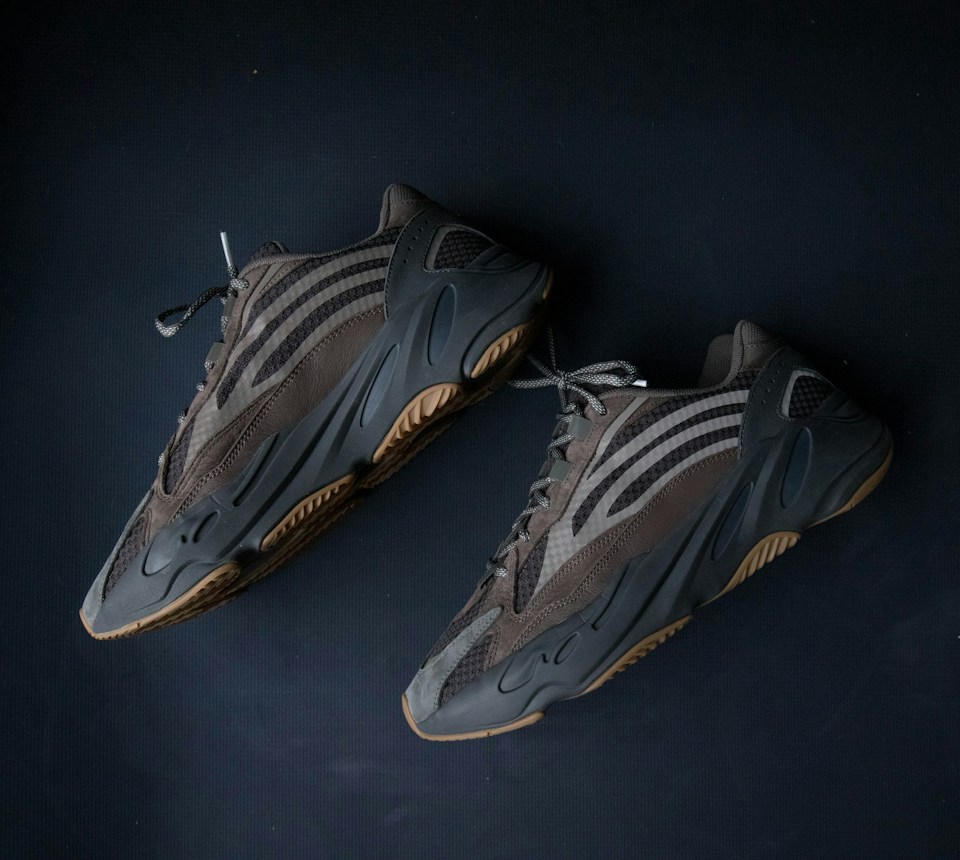
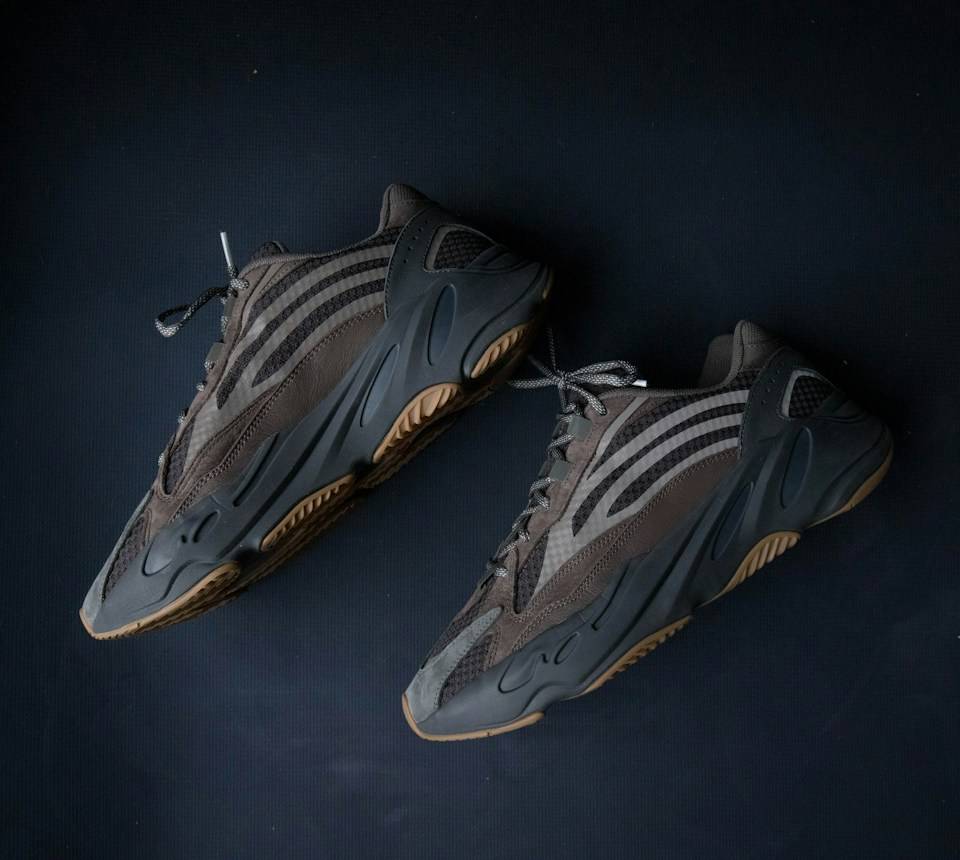
This 960 × 860 photograph decreased from 132,366 to 57,689 bytes (56.4% smaller) at JPG quality 70. Pixel dimensions stayed the same. This is one measured example, not a typical-savings or lossless-quality claim.
Observed
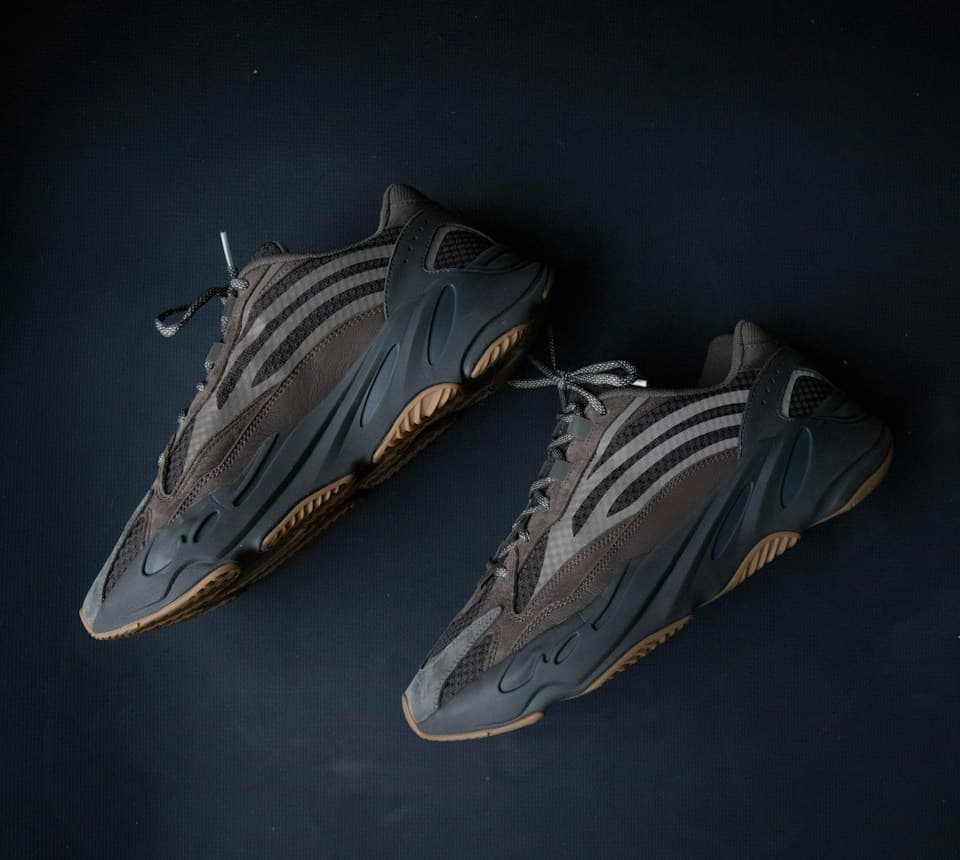
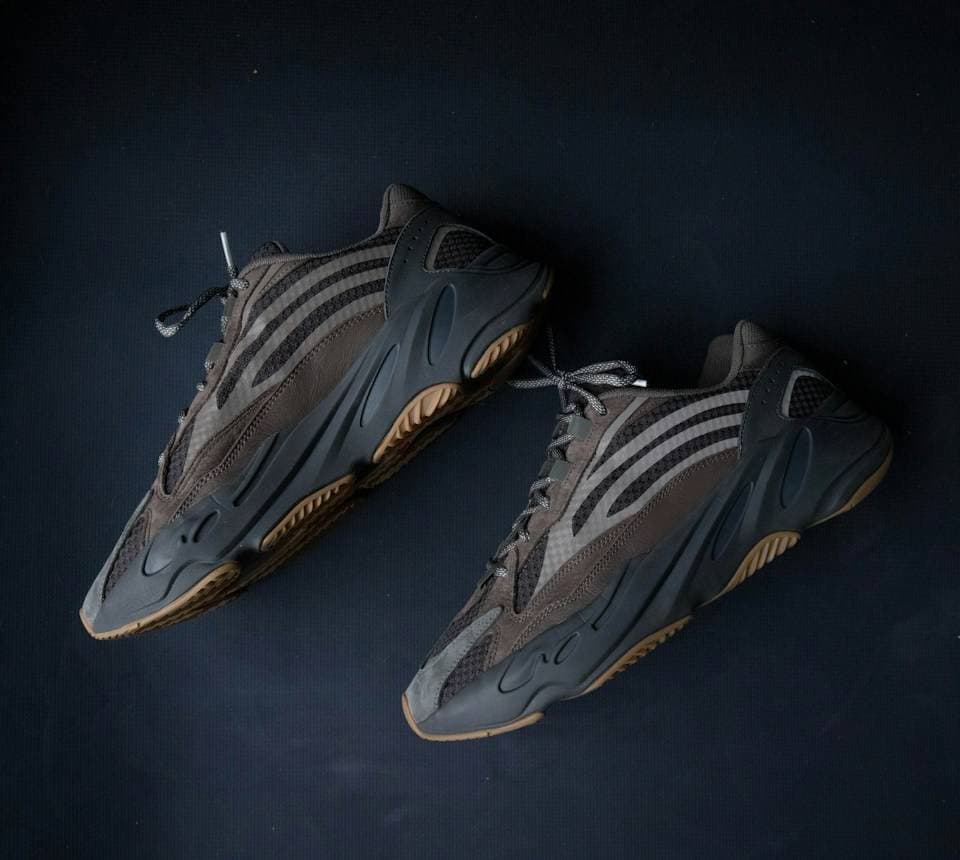
Sources: Photograph: Zachary Keimig on Unsplash · Unsplash License
Method
Exported through the actual Compress images workspace in the Codex in-app Chromium browser on macOS, using a local development build based on revision 8c91a24. Recommended mode, Keep original formats, quality 70, dimension limiting off, no byte target, and Always remove metadata off. The smaller result was re-encoded, not an unchanged-original fallback. File sizes and dimensions were then read from the downloaded files.
Limitations
- JPG encoding is lossy. Compare the downloadable originals at 100% and at the intended display size; equal pixel dimensions do not mean equal detail.
- Savings depend on the input, browser encoder and settings. One product photo is not a benchmark across image types.
- An optimized article preview may be encoded differently for delivery. The direct file links below are the measured artifacts.
These guides describe PDF Logic’s tools and their limits. Read how this content was prepared or report a correction.
Topics
Continue Reading
More articles you might find useful
Edit Images in Your Browser: A Review and Export Workflow
Prepare still images, choose edits and output settings, review actual encoded results, and download individual files or a ZIP.
Compress PDF While Checking Visual Quality
Use compression settings with clear limits and compare text and images before replacing your original PDF.
A4 vs US Letter: Preparing Documents for International Sharing
Compare A4 and US Letter dimensions, set the intended size before PDF export, and avoid clipped text when printing documents across regions.