How to Compress a PDF Without Losing Quality
Learn what makes a PDF large, which compression setting keeps text and images sharp, and how to compare the result before you send it.
By the PDF Logic team at Appzotech
Published Updated 8 min read
On this page
What makes a PDF large
A PDF full of photos or scanned pages can usually be made much smaller with no change you would notice. A PDF that is mostly typed text may hardly shrink at all. The difference is what is inside the file.
A PDF is a container. It holds text, the fonts needed to draw that text, shapes such as lines and charts, and images. Text and shapes are tiny: a page of typed text takes only a few kilobytes. Images are where the size goes.
Take a scanned page. A scanner does not record letters. It photographs the paper. A US Letter page scanned in color at 300 dots per inch is 2,550 by 3,300 pixels, about 8.4 million in total. Even after the scanner compresses that picture, one scanned page can outweigh a hundred typed ones.
Photos placed in a report behave the same way. A 12-megapixel phone photo is about 4,000 pixels wide. Set it 6 inches wide on the page and it carries more than 650 pixels per inch, roughly twice what a good print needs and several times what a screen shows. Those surplus pixels are what Compress PDF removes.
Lossless and lossy: two kinds of smaller
There are two ways to shrink a PDF, and “without losing quality” means something different for each.
Lossless compression repacks the file. It stores the same data more efficiently, drops objects that nothing refers to, and trims embedded fonts to the characters the document uses. Every pixel of every image stays identical. The saving is usually modest, and on a file that was already saved efficiently it can be nothing.
Lossy compression changes the images. It lowers their resolution to suit the size they appear on the page, then saves them as JPEG at a chosen quality. Done with restraint, this removes detail nobody could see at reading size. Pushed too far, it leaves soft text in screenshots and blocky patches in photos.
In short, Lossless keeps quality exactly, for a small saving. A moderate lossy setting keeps the quality you can see and saves far more, provided you check the result at the size people will read it.
Which setting to choose
Compress PDF has two modes. Reduce file size offers four presets. Meet a size limit works backward from a number you enter.
Swipe the table sideways to see every column.
| Setting | What it does | Choose it when |
|---|---|---|
| Lossless | Repacks the file. Image pixels do not change. | Images must stay exact: engineering drawings, artwork, medical or legal scans. |
| Higher quality | Resamples photos to about 220 pixels per inch with light JPEG compression. | The PDF will be printed or zoomed into. |
| Recommended | Resamples photos to about 150 pixels per inch. | Email, uploads and reading on screen. Start here. |
| Smaller file | Resamples images to about 100 pixels per inch and may turn whole pages into images. | Size matters more than sharpness, and nobody needs to search or copy the text. |
| Meet a size limit | Tries stronger and stronger settings until the file fits under your number. | A portal or mailbox has a hard cap. |
One detail works in your favor. With Higher quality and Recommended, only images that look like photographs are resampled. Images that look like scanned paper or line art are kept pixel for pixel, because JPEG smears fine black text on a white background. That protects your scans, and it means a scanned document may shrink less than you expect at these settings.
Compress a PDF step by step
- Open the file. Go to Compress PDF and select Choose a PDF, or drop the file onto the page. The tool takes one PDF at a time, up to 30 MB and 500 pages.
- Pick a preset. Keep Recommended for a first attempt. Choose Higher quality for print, or Lossless when images must not change.
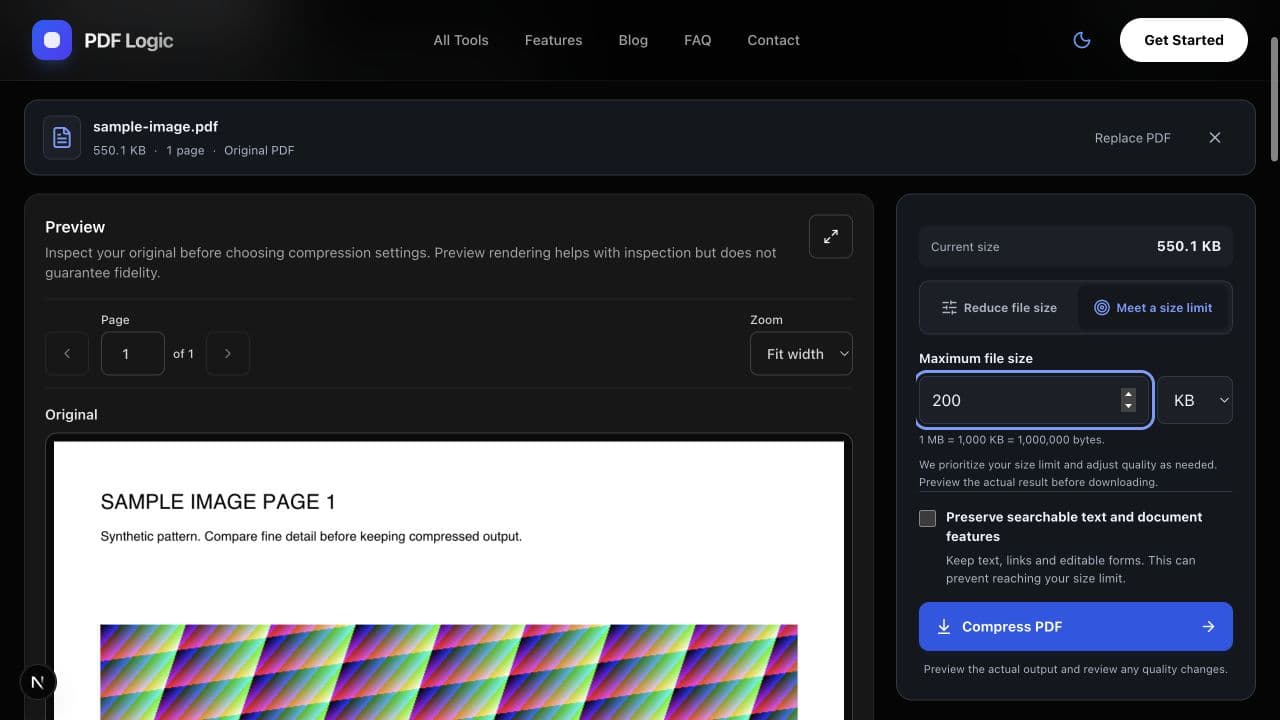
- Or set a limit. If you have a hard cap, switch to Meet a size limit, type the number under Maximum file size and pick KB or MB. Tick Preserve searchable text and document features if text, links and form fields must keep working.
- Compress. Select Compress PDF. Your file is uploaded now, and the result shows the new size and percentage saved.
- Compare. Use the Original, Compressed and Both buttons above the preview, and set Zoom to 200% on the page with the smallest text.
- Download or retry. Select Download PDF. If it is not right, pick a preset under Try another setting, or select Change settings to go back with your file loaded.
Where your file goes: Compress PDF runs on our servers. Your PDF is uploaded when you select Compress PDF, not when you choose it, and each further setting you try uploads it again. We delete the temporary copy when the job finishes. The original on your device is not changed.
Here is what Recommended did to a one-page sample that is almost entirely a detailed color image. The file went from 550 KB to 274 KB, about half, and at reading size the two pages are hard to tell apart.
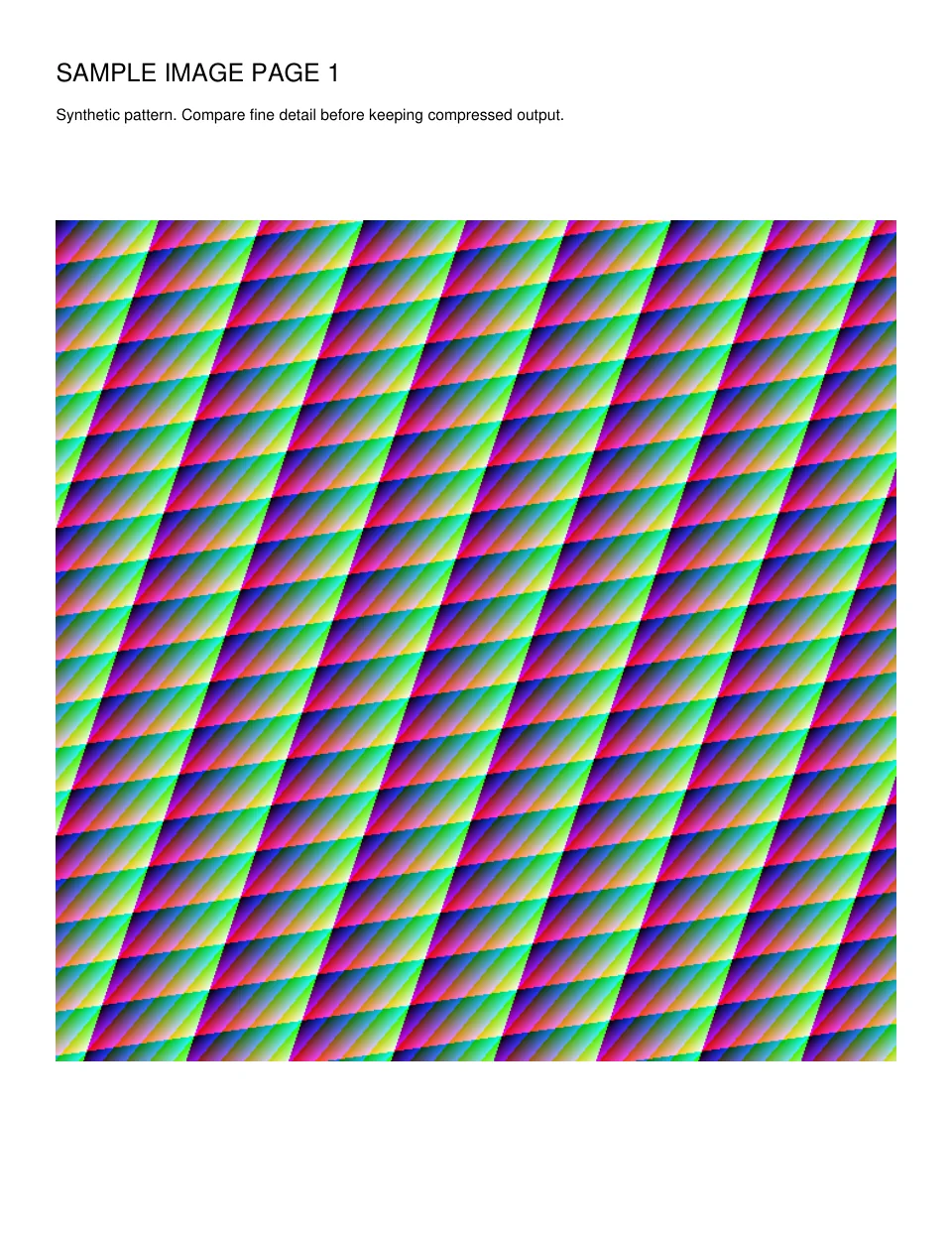
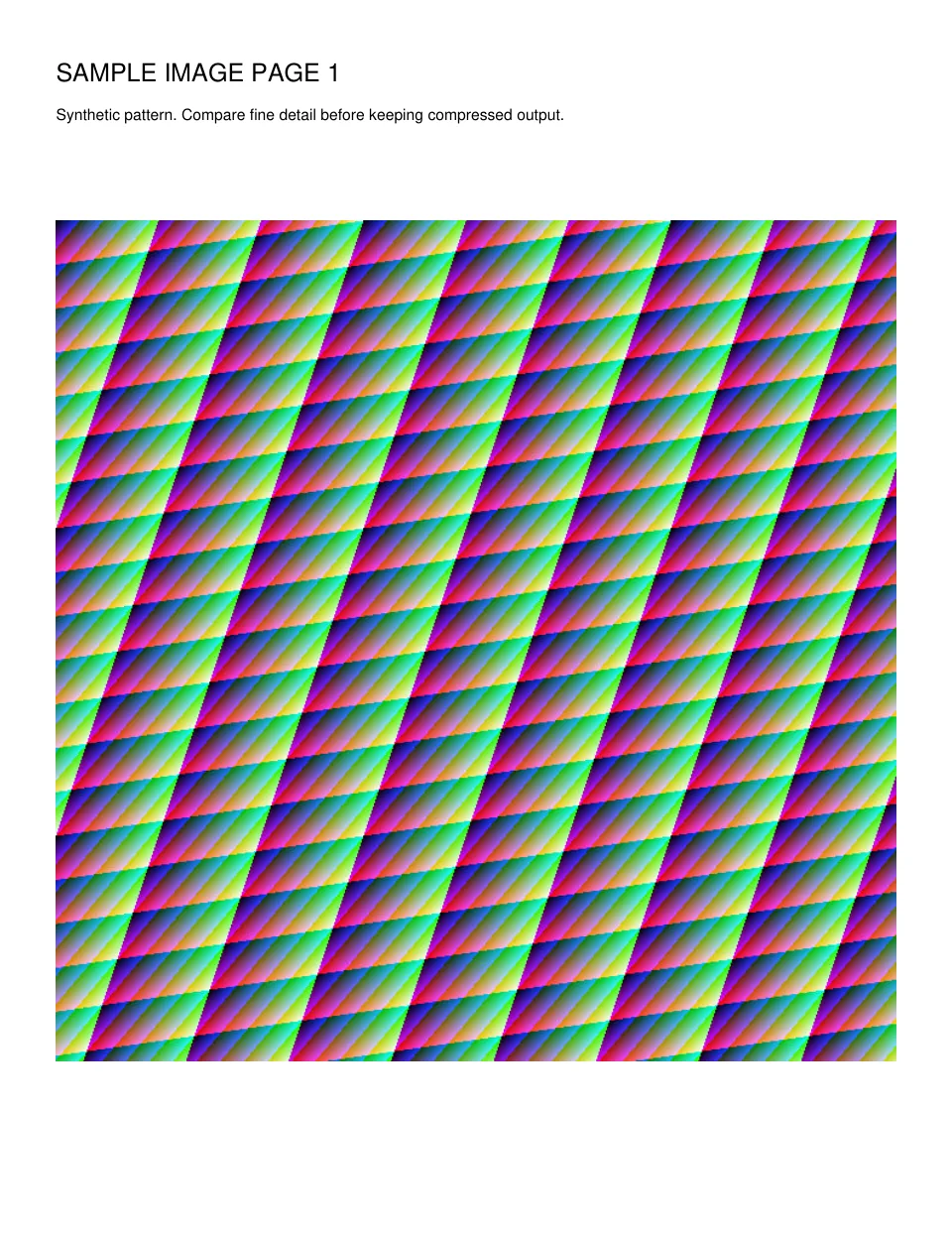
You can download the original sample and the compressed copy and zoom in yourself.
Check the result before you send it
Open Result details for the exact byte count, and for how many images were recompressed and how many were left alone. Then look at the pages themselves.
- The smallest text. Footnotes, table figures and text inside screenshots blur first.
- Thin lines. Check charts, signatures and technical drawings at 200%.
- Faces and smooth color. Skin, skies and gradients show blocky patches when compression is too strong.
- Search and forms. In the downloaded copy, press Ctrl+F for a word you know is there, and click into a form field if the document has any.
If the panel says Pages were flattened into images, the text can no longer be searched or selected and form fields no longer work. That only happens with Smaller file, or with Meet a size limit when Preserve searchable text and document features is not ticked.
If the file barely shrinks, or something goes wrong
“No smaller file at this setting”
The PDF is already efficient: it is mostly text, or its images were compressed hard when it was made. Compress PDF does not hand back a file larger than the one you gave it, so you get your original instead. To go further, remove pages you do not need or export the document again from its source.
A scanned document hardly changes
Recommended is protecting your scanned pages, as described above. Try Smaller file or Meet a size limit, then read the small print in the preview. If it has gone soft, rescanning in grayscale at 300 dpi gives a better result than squeezing a heavy color scan.
Text or images look soft
Go back with Change settings and choose Higher quality or Lossless. Always restart from the original file. Compressing a copy that has already been compressed stacks one round of damage on another.
“Target not reached”
The smallest valid result is still above your limit, and the panel tells you by how much. You can download that best result, select Try stronger compression if you had asked to preserve text and features, or send fewer pages. Our guide to reducing PDF file size covers the other options.
The file is refused or comes back unchanged
Signed PDFs are refused because any change would invalidate the signature; compress an unsigned copy instead. Password-protected PDFs need Unlock PDF first, along with the password. A PDF/A archive file comes back unchanged from Lossless, Higher quality and Recommended, because rewriting it would put its archival status at risk.
When another approach works better
- Export again from the source. If you have the Word, PowerPoint or design file, exporting a new PDF with image compression turned on is cleaner than compressing afterwards, because the application still has the full-quality pictures to work from.
- Send fewer pages. Split PDF and Organize PDF extract or remove pages in your browser, so the document stays on your device.
- Use a desktop application for files over 30 MB or 500 pages, for dozens of files at once, or for documents you are not allowed to upload. Adobe Acrobat Pro has a detailed optimizer, and Preview on a Mac has a quick Reduce File Size export filter.
If the file is small enough and the upload still fails, size was not the problem. See why PDF uploads get rejected.
Frequently asked questions
Does compressing a PDF reduce print quality?
It depends on the setting. Lossless does not touch images, so prints are identical. Higher quality keeps about 220 pixels per inch, which holds up on office printers. Recommended and Smaller file are meant for screens, and large photos printed from them can look soft.
How much smaller will my PDF get?
It depends on how much of the file is images. A photo-heavy PDF can lose half its size or more, as our sample did. A text-only PDF may lose almost nothing. You see the exact size when the job finishes, and you can try another setting before you download.
Will compression remove links, bookmarks or form fields?
Not with Lossless, Higher quality or Recommended. Before it returns your file, Compress PDF checks that the text, links, bookmarks, comments and form fields match the original. Smaller file can flatten pages into images, which removes all of them. So can Meet a size limit, unless you tick Preserve searchable text and document features.
Worked example
Compare the original with the compressed copy
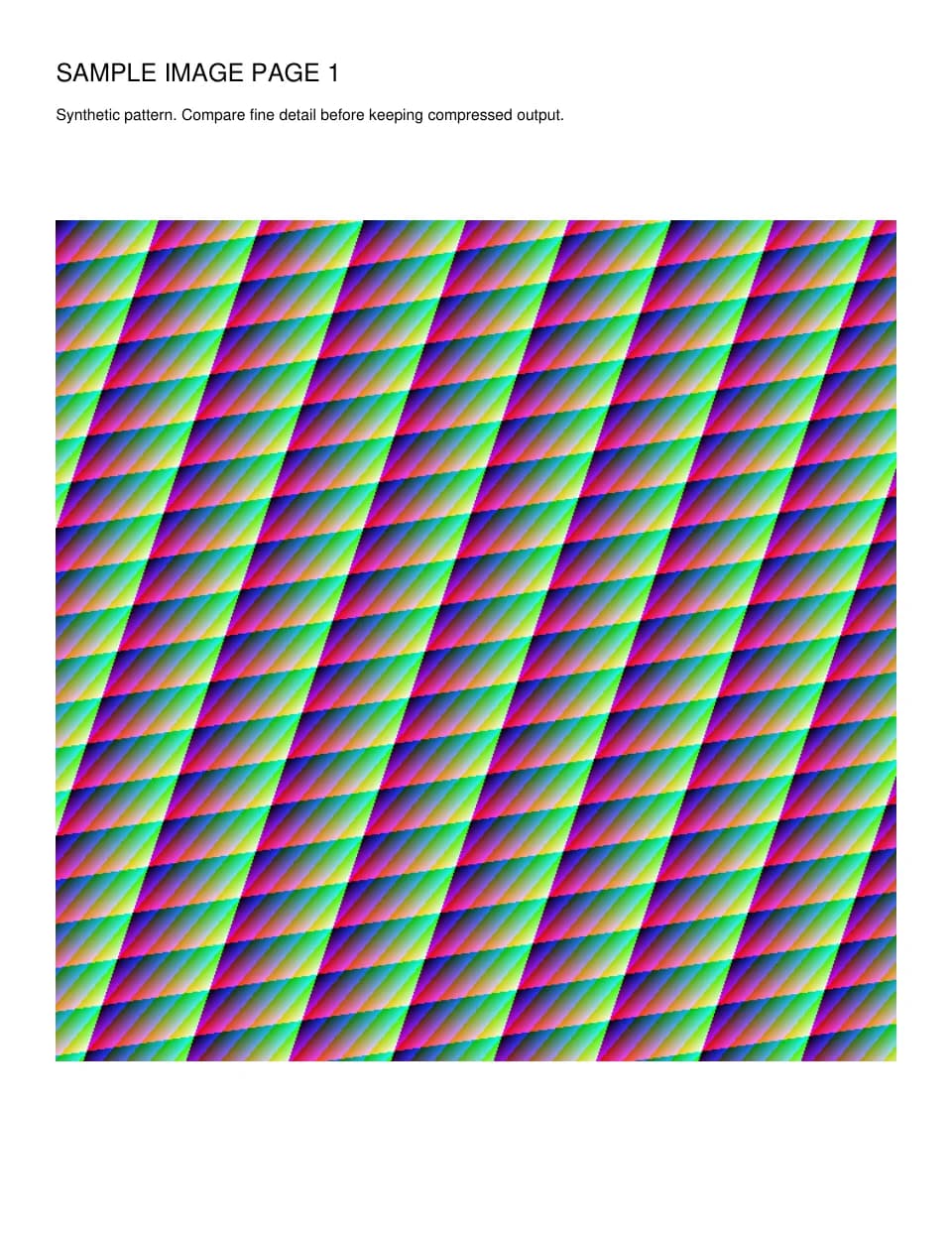
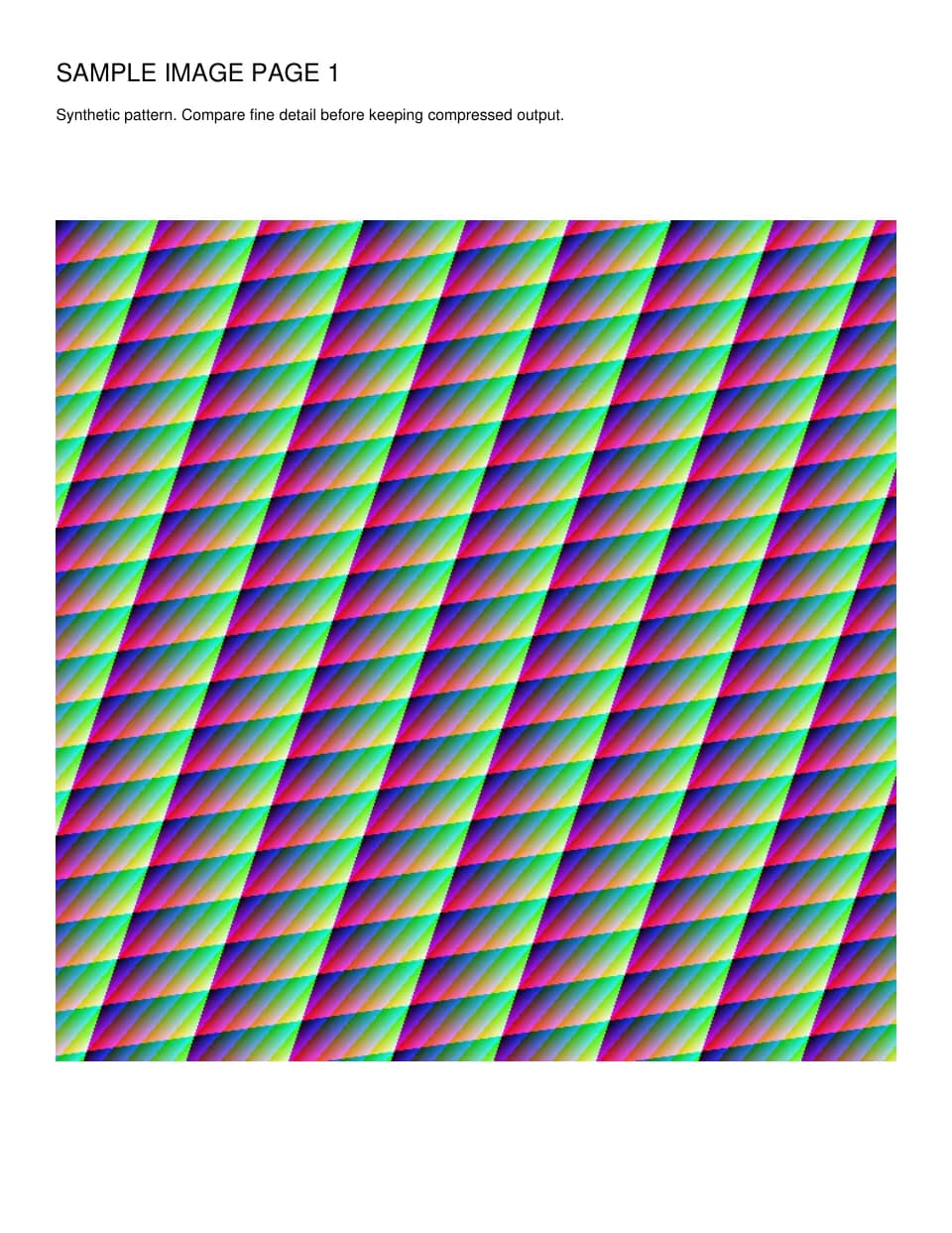
A one-page sample that is almost entirely a detailed color image went from 550 KB to 274 KB with the Recommended preset. Download both PDFs and zoom in to compare the detail.
Files from this example
Download them to compare the result with the original, or to try the same steps yourself.
Try it
Tools for this guide
Each one is free and works without an account.
Spotted a mistake or something out of date? Tell us and we will fix it. Our editorial policy explains how these guides are written.