PDF Redaction: How to Remove Sensitive Information for Good
A black box drawn over text hides it without deleting it. Here is how real redaction works, how to do it in PDF Logic, and how to prove the text is gone.
By the PDF Logic team at Appzotech
Published Updated 8 min read
On this page
Why a black box isn’t redaction
A PDF page is built in layers. The words are stored as characters with coordinates, and a rectangle you draw on top is a separate object sitting above them. The page looks redacted, but the characters are still in the file. Anyone can select the page, copy it, and paste the “hidden” text into a note. Search still finds it. Deleting the rectangle in a PDF editor brings it straight back.
The same information often lives in places you don’t see on the page at all: the author name in the document properties, a comment in the margin, an attached spreadsheet, a form field, or the invisible text layer that sits behind a scanned page so it can be searched.
Real redaction does two things. It deletes the characters and image pixels inside each area you mark, and it clears out those hidden places. What is left has nothing underneath the box to recover.
Scroll the table to compare all columns.
| What you do | What happens in the file | Is the content gone? |
|---|---|---|
| Redact the area | The text and image data inside the area are deleted | Yes |
| Draw a black rectangle or highlight | A shape is placed over the text | No. The text is still underneath |
| Crop the page | The visible edge of the page moves | No. Content outside the new edge stays in the file |
| Add a password | The file is encrypted | No. Anyone with the password sees everything |
| Print the covered page and scan it | The page becomes a picture | Yes, but you lose searchable text and sharpness |
How to redact a PDF with PDF Logic
Redact PDF works in three stages: mark, review, apply. Nothing is removed, and nothing leaves your device, until the last one.
- Open your file. Choose one PDF up to 30 MB. If it asks for a password, remove it with Unlock PDF first.
- Mark what has to go. Drag across text or part of an image to draw an area. You can also select Add area, then move and resize the box. Make each box slightly generous so no letter edges show.
- Find every repeat. Select Find text, type a name, number or phrase, and choose Find matches. Check the results, tick the ones you want or choose Select all results, then choose Mark selected matches. Match case and Whole words narrow the search.
- Search scanned pages too. Ordinary search can’t see text inside an image. Open Recognize scanned text, set the Recognition language, choose the pages and select Recognize selected pages, then search again. This works on PDFs of up to 100 pages.
- Style the marks if you need to. Select a mark to change its color or add short Overlay text such as “REDACTED” (up to 40 characters).
- Review. Choose the Review button, which shows how many redactions you have, and page through the solid preview. This is the moment to add or remove areas.
- Apply. Tick the box confirming that the change is permanent in the new copy, then choose Apply redactions. The PDF is uploaded to our server at this point, redacted and sent back. We delete the temporary copy when the job finishes.
- Download the new file. Your original is unchanged.
What else is removed from the file
When you apply redactions, the whole document is cleaned, not only the marked areas. That is deliberate: a hidden copy of a name in a comment or in the file’s properties is as much of a leak as the name on the page. The cleanup removes:
- Document properties such as title, author and creation date
- Comments, highlights and other annotations
- Links
- Attached files
- Form fields
- Hidden text, including the invisible search layer behind scanned pages
Keep your original. The cleanup applies to every page. Clickable links, fillable fields and reviewer comments you still need will be gone from the redacted copy, and a digital signature on the document will no longer validate.
One more detail is worth knowing. A drawn line or shape that touches a marked area is removed whole, so a box that overlaps a table border can make that border vanish along its full length. Keep boxes tight around the content when the surrounding layout matters.
Prove the text is gone
Don’t take the black bar’s word for it. Open the file you downloaded in a PDF reader and run these checks. They take about a minute.
- Search for it. Press Ctrl+F (Cmd+F on a Mac) and look for each value you removed. You should get no results.
- Copy the page. Select all the text on a redacted page, copy it, and paste it into a plain text editor. Read what comes out.
- Try to select through the bar. Drag the cursor across a redacted area. Nothing inside it should highlight.
- Open the properties. File > Properties should show no author or title.
- Read the file name. “Smith-settlement-redacted.pdf” gives away the name you just removed.
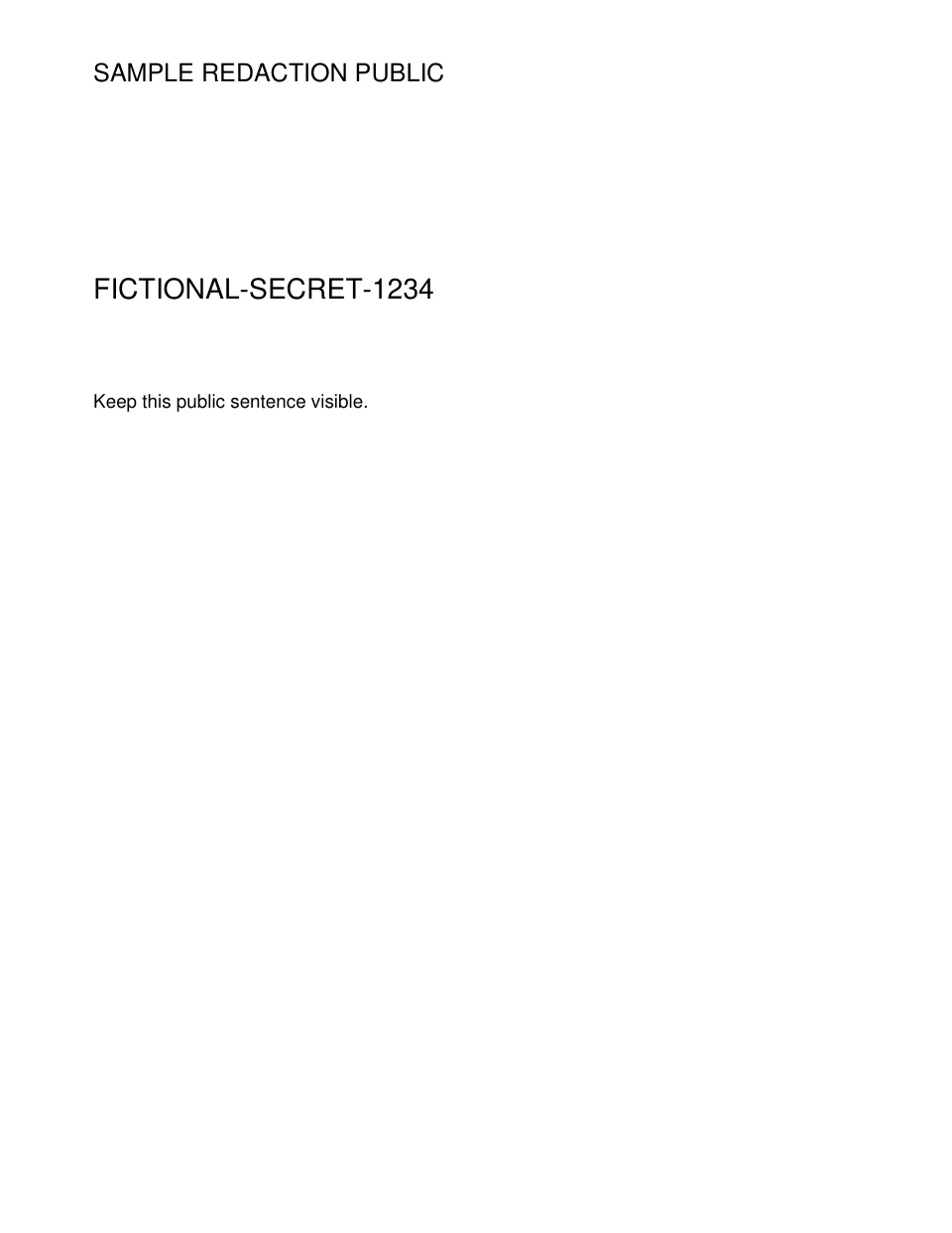
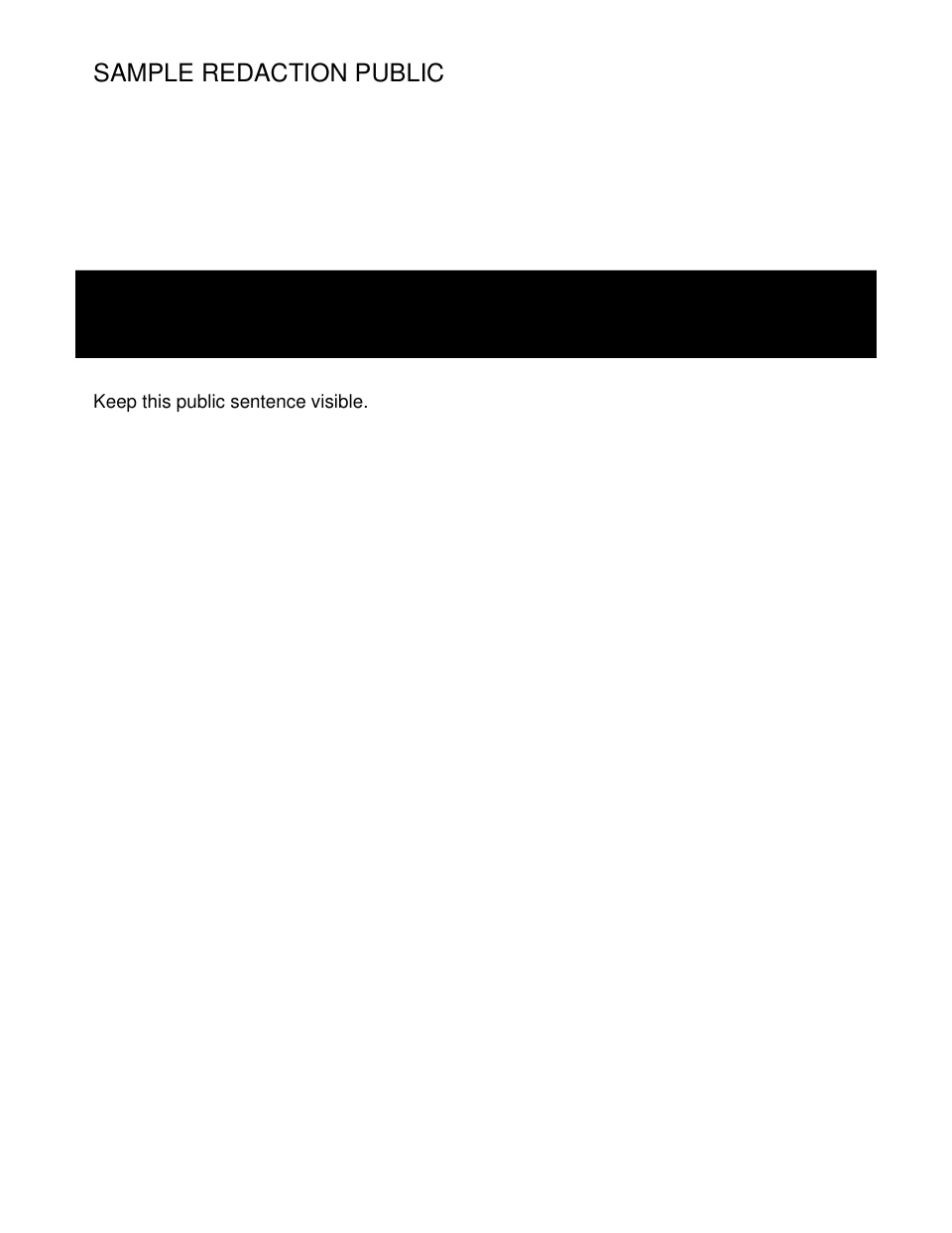
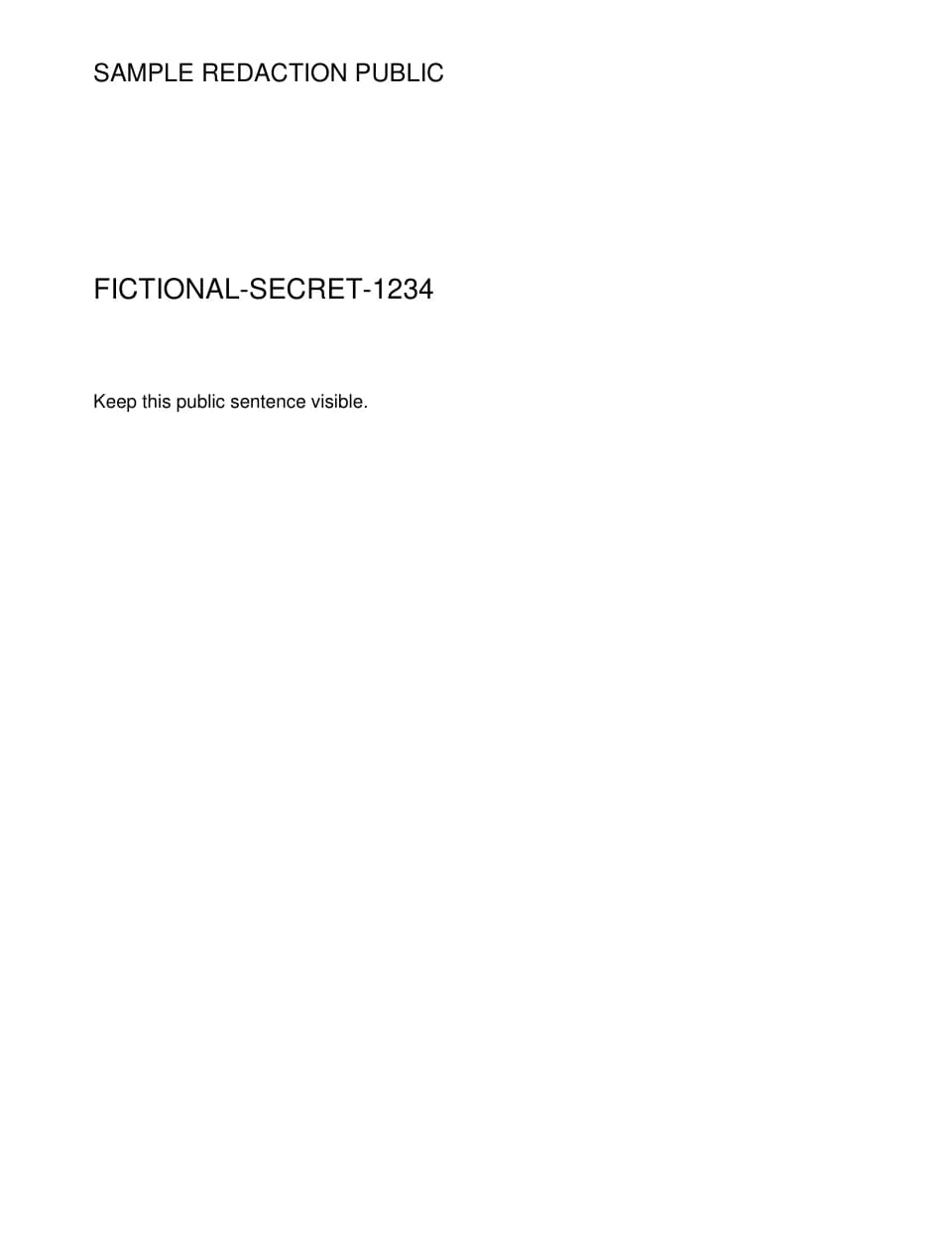
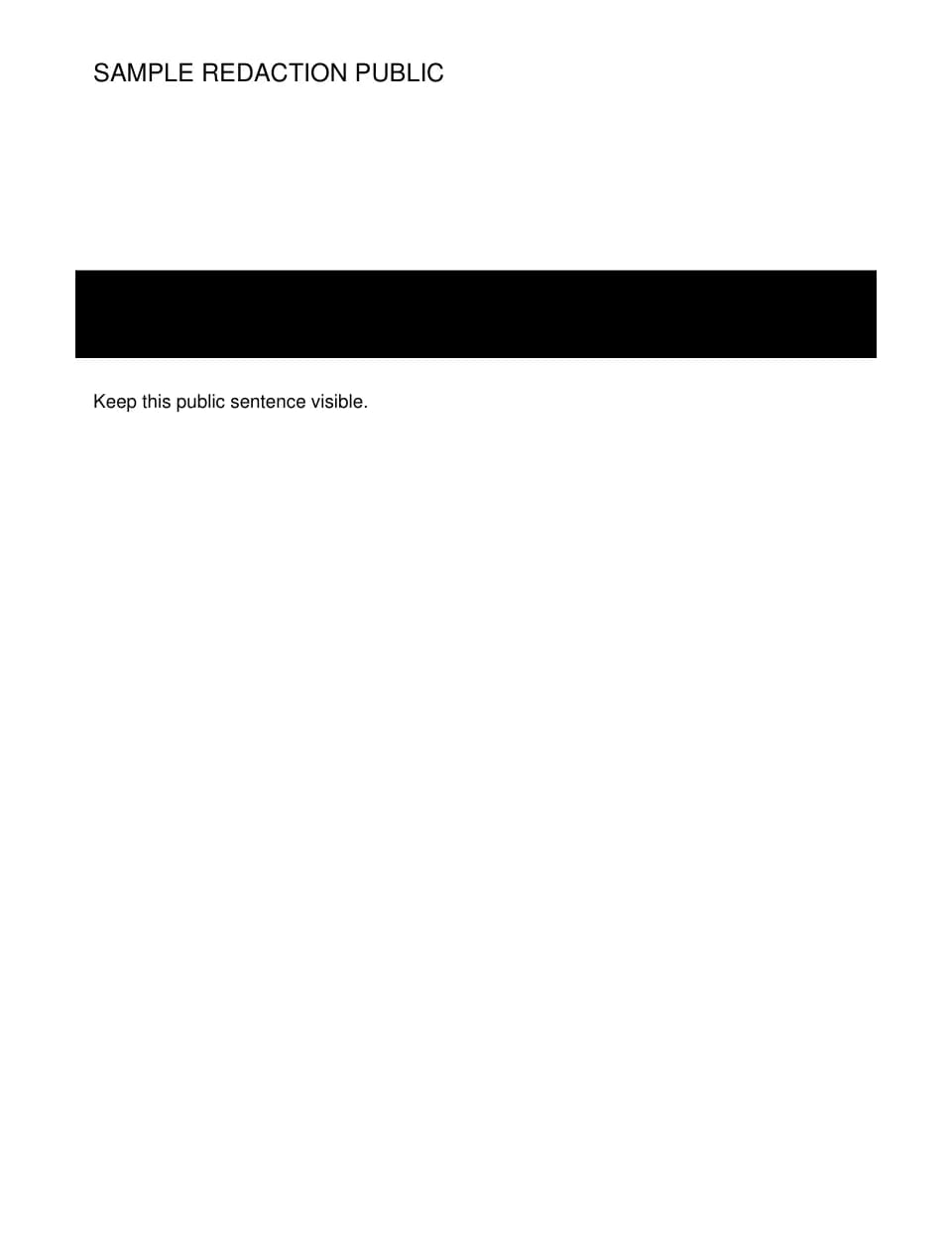
We ran the sample above through the same checks. Before redaction, the page’s text came out as three lines, including FICTIONAL-SECRET-1234. Afterwards there were two: the heading and the public sentence. You can repeat the test with the original sample and the redacted copy.
The result screen also lists what the tool confirmed about the file itself: properties, attachments, annotations and links removed, and the page count unchanged. What it can’t know is whether you marked every place the information appears, which is the next section.
Mistakes that leak information
- Redacting one occurrence. A name in the body also appears in the header, the signature block and page 14. Use Find text for every value, and try the variants: “J. Smith,” “John Smith,” “Smith, John.”
- Trusting search on a scan. No results can mean the text isn’t there, or that the page is a picture. Recognize scanned text first, and still read image-heavy pages by eye, because recognition misses words in poor scans.
- Leaving the context. “The patient, a 43-year-old pilot from [redacted]” may identify someone without the name. Read the sentence around each bar.
- Letting the bar’s size talk. A short bar in a list of full names narrows the guesses. When that matters, make the bars a uniform width.
- Sending the wrong file. Give the redacted copy a clearly different name, and attach it from the folder where you saved it rather than from a recent-files list.
When another tool is the better choice
Use a desktop application when your organization’s rules don’t allow uploading the document, when the file is larger than 30 MB, or when you redact in volume. Acrobat Pro’s Redact tool can search a whole document for patterns such as phone numbers and email addresses, and Preview on a Mac has a basic Redact tool that works offline.
Use a different PDF Logic tool when removal isn’t the goal: Crop PDF to trim margins, Edit PDF to highlight or annotate, Protect PDF to limit who can open a file (see how PDF passwords work), Watermark PDF to label a copy as confidential (see how to add a watermark), and Blur Face for faces in photos.
Frequently asked questions
Can a redaction be undone?
Not in the redacted copy. The text and pixels are deleted, so there is nothing under the bar to recover. Your original file is untouched, which is why it needs to be stored as carefully as before.
Is my PDF uploaded?
Only at the final step. Marking areas, searching for text and recognizing scanned pages all happen in your browser. Applying the redactions uploads the PDF to our server, which returns the new file and deletes its temporary copy when the job finishes.
Will the redacted PDF still be searchable?
Ordinary text that you didn’t mark stays searchable. A scanned PDF is different: its invisible search layer is removed along with other hidden text, so run the redacted copy through OCR PDF if you need search back. How OCR works explains what to expect.
Why did my links and comments disappear?
Because the cleanup covers the whole document. Links, comments, form fields and attachments can all carry information that isn’t visible on the page, so they are removed from every page of the redacted copy.
Worked example
Before and after: one line redacted
The sample has a made-up secret next to ordinary text. After redaction, searching the PDF no longer finds the secret, while the heading and the sentence below it are still there.
Files from this example
Download them to compare the result with the original, or to try the same steps yourself.
Try it
Tools for this guide
Each one is free and works without an account.
Spotted a mistake or something out of date? Tell us and we will fix it. Our editorial policy explains how these guides are written.