How OCR Works: From Scanned PDF to Searchable Text
See how OCR turns a picture of a page into text you can search and copy, what affects its accuracy, and how to run it on a scanned PDF and check the result.
By the PDF Logic team at Appzotech
Published Updated 8 min read
On this page
Why a scanned PDF is not text yet
A scanned PDF looks like a document, but to a computer it is a stack of photographs. You cannot search it, copy a sentence out of it, or have a screen reader read it aloud. Optical character recognition, or OCR, is the step that turns those photographs back into text.
PDFs exported from Word, a browser or accounting software already contain real text. Each character is stored as a character, with a font and a position, so pressing Ctrl+F (Cmd+F on a Mac) finds words instantly. A PDF made by a scanner or a phone camera holds only a picture of each page, and the letters are just patterns of dark and light pixels.
A quick test tells you which kind you have. Try to select a single word with your mouse. If nothing highlights, or the whole page highlights as one block, the page is an image and needs OCR. OCR PDF runs the same check when you open a file and tells you how many pages are scans and how many already contain text.
How OCR reads a page
OCR software works through a page in stages. Knowing them makes its mistakes easier to predict.
- It simplifies the image. The page is reduced to dark marks on a light background, so that letters stand out from paper texture, shadows and color. Everything later depends on this step, which is why a clean scan matters more than any setting.
- It finds the layout. The software divides the page into blocks, then lines, then words, and decides the order to read them in. Columns, tables and sidebars are where this goes wrong.
- It recognizes the text. Early OCR compared each letter shape with stored templates. Current engines, including the open-source Tesseract engine that PDF Logic uses, pass a whole line of text to a neural network trained on that language’s writing, which copes far better with letters that touch or break.
- It applies language knowledge. The engine uses the vocabulary and letter patterns of the language you selected to settle doubtful shapes, such as whether a blur is “rn” or “m”. Choose the wrong language and this step works against you.
- It records where each word is. Every recognized word is stored with its position on the page, so the text can later be placed exactly over the picture of that word.
Searchable PDF or plain text
OCR can hand the result back in two forms.
Swipe the table sideways to see every column.
| Output | What you get | Best for |
|---|---|---|
| Searchable PDF | Your original pages, unchanged, with an invisible layer of text placed over each word | Archiving, sharing, searching, and copying a passage while keeping the page as it was |
| Plain text (TXT) | Only the recognized words, page by page, with no layout, fonts or images | Pasting into another document or feeding other software |
The searchable PDF is the one that surprises people, because it looks exactly like the scan you started with. The difference is that your cursor can now select words and search can find them.
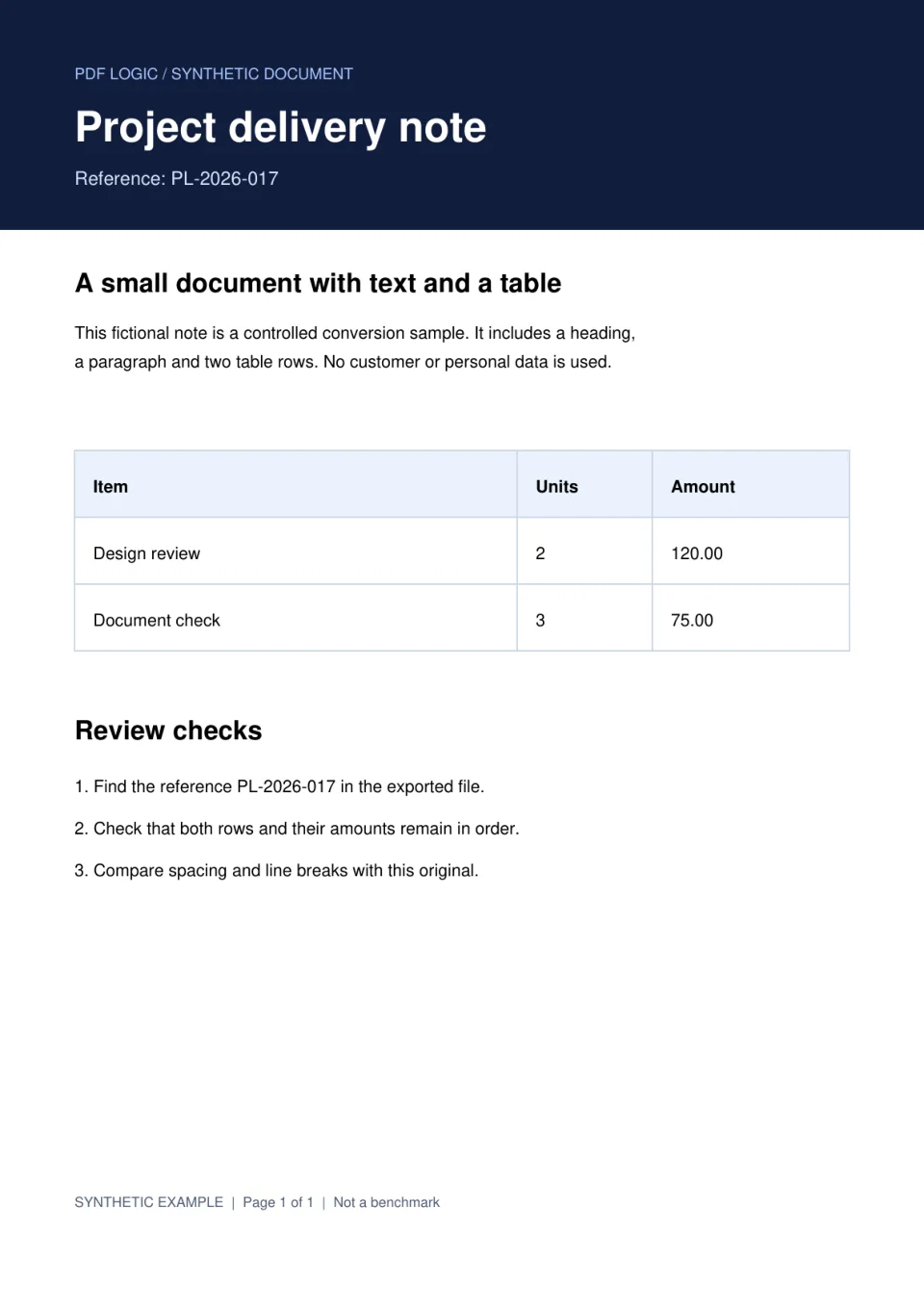
You can try it yourself. Download the image-only sample and the searchable result, then search each one for “PL-2026-017”.
What decides accuracy
On a clean, straight, printed page, current OCR reads almost every word correctly. Accuracy falls for reasons you can usually see on the scan before you start.
Swipe the table sideways to see every column.
| What you see | What goes wrong | What to do |
|---|---|---|
| Small or fuzzy text | Letters merge, so “rn” becomes “m” and “cl” becomes “d” | Rescan at 300 dpi; the Tesseract project’s image quality guide recommends at least that |
| A tilted page | Lines are split or run together, and some go missing | Straighten it; Scan to PDF does this for photographed pages |
| Shadows, creases or a dark background | Words in the dark area are skipped | Rescan in even light, or use the scanner’s text mode |
| The wrong language selected | Accented letters and common words are misread | Choose the language printed on the page |
| Columns, tables and sidebars | Text comes out in the wrong order and table cells run together | Check the reading order; for tables use PDF to Excel |
| Handwriting or decorative type | Words are dropped or replaced with nonsense | Type the important values by hand |
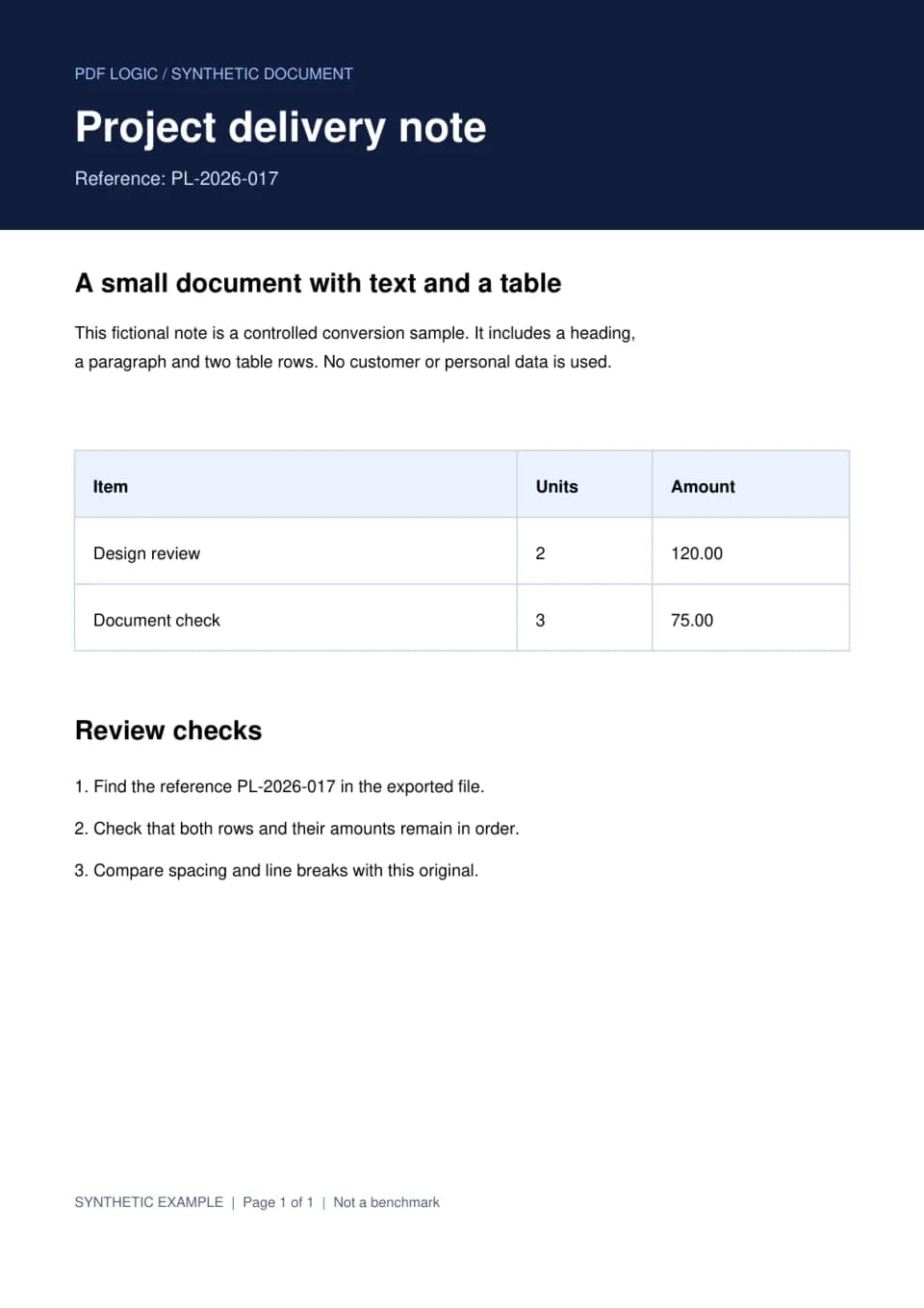
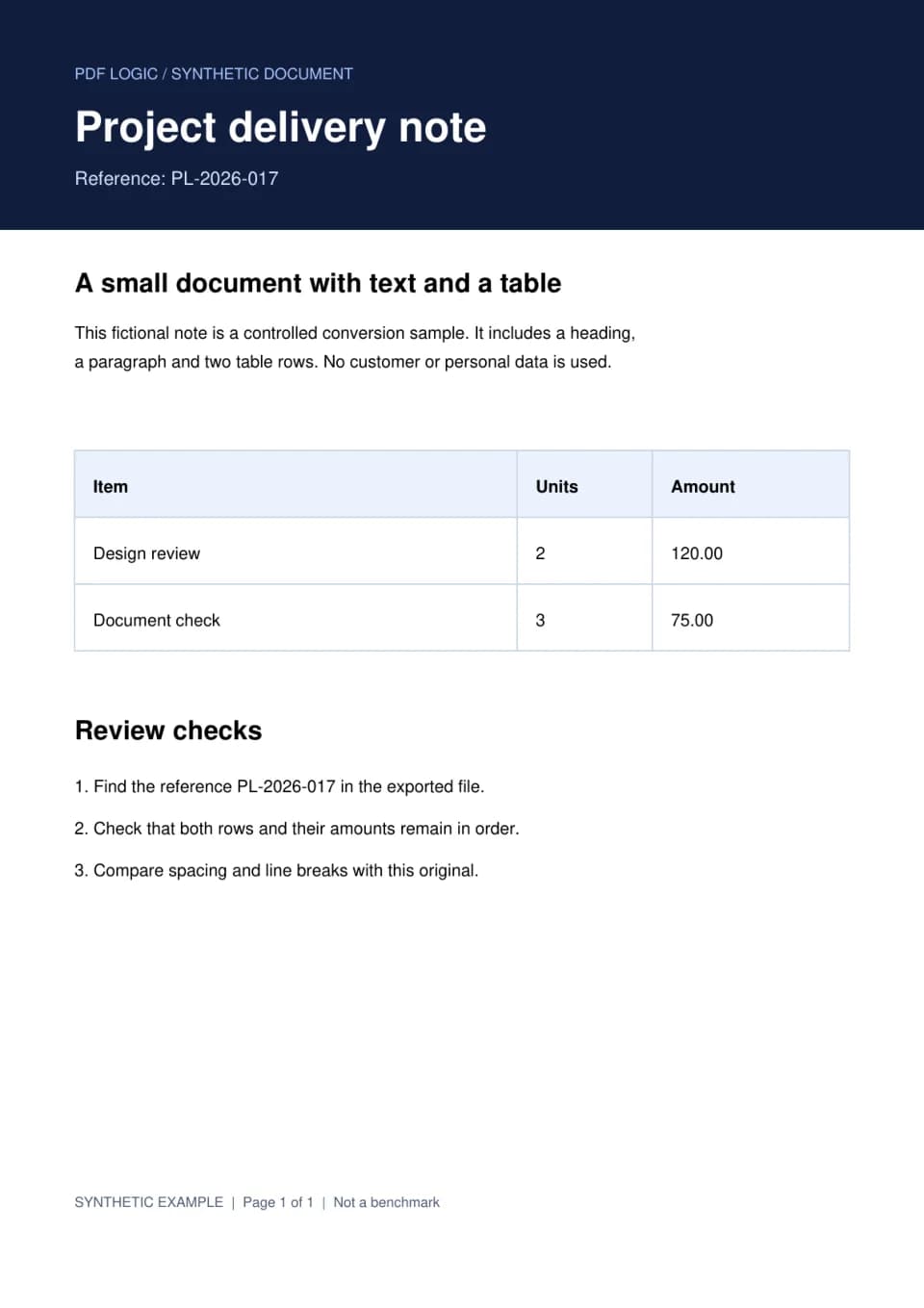
Our sample shows two of these. We ran the delivery note above through English recognition. The reference number, the paragraph and every figure in the table came out correctly. But the large white title on the dark banner was skipped, although the smaller lines around it were read, and the table came back as three plain lines of words with no columns. That second result is typical: OCR captures words, not the grid that organizes them.
OCR PDF reads each page as it is. It does not straighten or sharpen the scan first, so fix a poor scan before you run it.
Run OCR on a PDF with PDF Logic
- Open the file. Go to OCR PDF and select Choose a PDF. You can use one PDF up to 50 MB and 100 pages.
- Set the language. Under Document language, choose the language printed on the pages: English, Spanish, French, German, Italian, Portuguese, Russian, Japanese or Chinese (Simplified).
- Choose the pages. Under Pages to recognize, keep All pages, or select Custom range and type something like 1-3, 5. Pages that already contain real text are not read again; their existing text is reused.
- Recognize. Select Recognize text and keep the tab open. The first run in a language also downloads that language’s data, so it takes a little longer.
- Read the result. The text appears under Text & export. Use Text from page to move through the pages and compare each one with the preview.
- Export. Select Create searchable PDF or Create text file, then download. You can set the name under Output filename first.
Where your file goes: recognition runs in your browser, so reading the text and creating a text file keep the document on your device. A searchable PDF is different: your PDF, up to 30 MB, and the recognized word positions are uploaded so the text layer can be added, and we delete the temporary copy afterward.
Check the result before you rely on it
- Search for a word you can see. Open the searchable PDF, press Ctrl+F and look for an unusual word from the middle of a page. Finding it shows that the text layer exists and lines up with the image.
- Copy a paragraph. Paste it into a plain text editor. What you see there is exactly what OCR captured, in the order it will be read.
- Read every number that matters. Check totals, dates, account numbers and reference codes against the page. OCR confuses 0 with O, 1 with l and 5 with S, and a wrong digit looks just as confident as a right one.
- Look at pages reported as empty. OCR PDF lists any page where it found no text. Those are often the blank backs of pages, but they can also be pages too faint to read.
Keep the original scan. When a recognized word is in doubt, the picture of the page is the record.
Searchable is not the same as accessible
OCR gives a screen reader words to speak, but not structure. There are still no headings, no table markup, no confirmed reading order and no descriptions of images. The W3C’s technique for scanned PDFs treats OCR as a first step, followed by checking the text and adding tags. Our guide to PDF accessibility covers what comes next.
When a different tool fits better
- You need to edit the wording. PDF to Word can recognize scanned pages into a text-only Word document. See converting PDF to Word.
- You need the numbers in a spreadsheet. PDF to Excel recognizes scanned tables and lets you correct cells before you export.
- You are starting from paper. Scan to PDF captures pages with your camera, straightens them and can make the PDF searchable in one pass.
- Your scans are in French or German. Accents and special characters need extra care; see OCR for French and German scans.
- The job is bigger or harder. For handwriting, a language that is not on the list, or hundreds of files, use desktop OCR software such as ABBYY FineReader or Adobe Acrobat Pro, or the free command-line tool OCRmyPDF. For a PDF over 100 pages, divide it with Split PDF and run each part.
Frequently asked questions
Does OCR change how my PDF looks?
No. A searchable PDF keeps your original pages and adds text you cannot see. The file does get a little larger, because the hidden text layer needs an embedded font. Our one-page sample grew from 88 KB to 118 KB.
How accurate is OCR?
On clean printed pages scanned at 300 dpi, expect an occasional wrong character rather than wrong sentences. On faint or tilted pages, expect to correct a lot. No engine is perfect, so proofread anything you will quote, calculate with or file.
What if my document uses two languages?
OCR PDF applies one language to each run. If different pages use different languages, divide the PDF by language with Split PDF, run each part, and join the results with Merge PDF. If two languages share a page, choose the one that carries the important content and proofread the rest.
Worked example
From a scanned page to searchable text
The source PDF is a picture of a page, with no text you can select. After OCR in English it has a hidden text layer, and searching the result finds the reference PL-2026-017.
Files from this example
Download them to compare the result with the original, or to try the same steps yourself.
Try it
Tools for this guide
Each one is free and works without an account.
Spotted a mistake or something out of date? Tell us and we will fix it. Our editorial policy explains how these guides are written.