How to Convert PDF to Word and Fix What Breaks
Turn a PDF into an editable Word document, pick the right mode for typed or scanned pages, and repair the tables, columns and fonts that shift on the way.
By the PDF Logic team at Appzotech
Published Updated 8 min read
On this page
Why a converted document never matches perfectly
A PDF is a set of drawing instructions. It records that a particular character sits at a particular spot on the page, and that a line runs from here to there. It doesn’t record that those characters form a paragraph, that those lines form a table, or that the text at the top is a heading. Word works the other way around: it stores paragraphs, tables and styles, and decides where each line breaks every time you open the file.
Converting from one to the other means rebuilding structure that was never saved. The converter groups characters into lines, lines into paragraphs, and aligned text into columns or tables, using rules about spacing and position. The open-source pdf2docx project, which PDF Logic’s layout mode builds on, describes the same three steps: extract the page content, work out the layout, write the Word file. A letter or a simple report comes through cleanly. A brochure with overlapping text boxes won’t.
If the author still has the Word file, ask for it. The original is always better than a conversion. Convert when the PDF is all you have.
Check whether your PDF is text or a scan
Open the PDF and try to select a sentence with your cursor. If individual words highlight, the page contains real text and can be converted with its layout. If the whole page highlights like a photo, or nothing does, it is a scan: a picture of text that has to be read with OCR first.
You don’t have to work this out by hand. PDF to Word inspects each file when you add it and tells you how many pages need text recognition.
Choose a conversion mode
| Mode | Choose it when | What you get |
|---|---|---|
| Preserve layout | The PDF has selectable text and you want the Word file to look like it | Editable text with fonts, images, tables and page structure rebuilt as closely as possible |
| Extract text only | You want the words and plan to format them yourself | Plain paragraphs, with each PDF page starting a new page in Word; images and layout are left out |
| Extract text only, with Recognize scanned text | Some or all of the pages are scans | Text read by OCR in the language you pick; images and layout are left out |
Preserve layout needs real text to work with. If your selection includes scanned pages, the tool asks you to switch that file to Extract text only.
Convert a PDF to Word step by step
- Add your files. Open PDF to Word and drop in up to 10 PDFs. Each can be up to 30 MB and 100 pages, with 100 MB allowed across the batch.
- Pick the output. Under Word output, choose Preserve layout or Extract text only. In a batch, each file keeps its own settings.
- Limit the pages. In Pages to convert, enter the pages you need, such as 1, 3-5, or leave the box empty for the whole document. Converting only the pages you will edit leaves less to clean up.
- Set up scanned pages. If the tool reports pages that need recognition, keep Recognize scanned text ticked and set Document language to the language printed on the page. Nine languages are available, including English, Spanish, French, German, Japanese and Simplified Chinese.
- Convert. Select Convert to Word. Text recognition, if it is needed, runs in your browser first. The PDF is then uploaded, converted on our server and deleted from it when the job finishes.
- Review and download. Select Preview Word layout to see the result before you save it, then Download DOCX. For a batch, Download ZIP collects every finished file.
What a clean conversion looks like
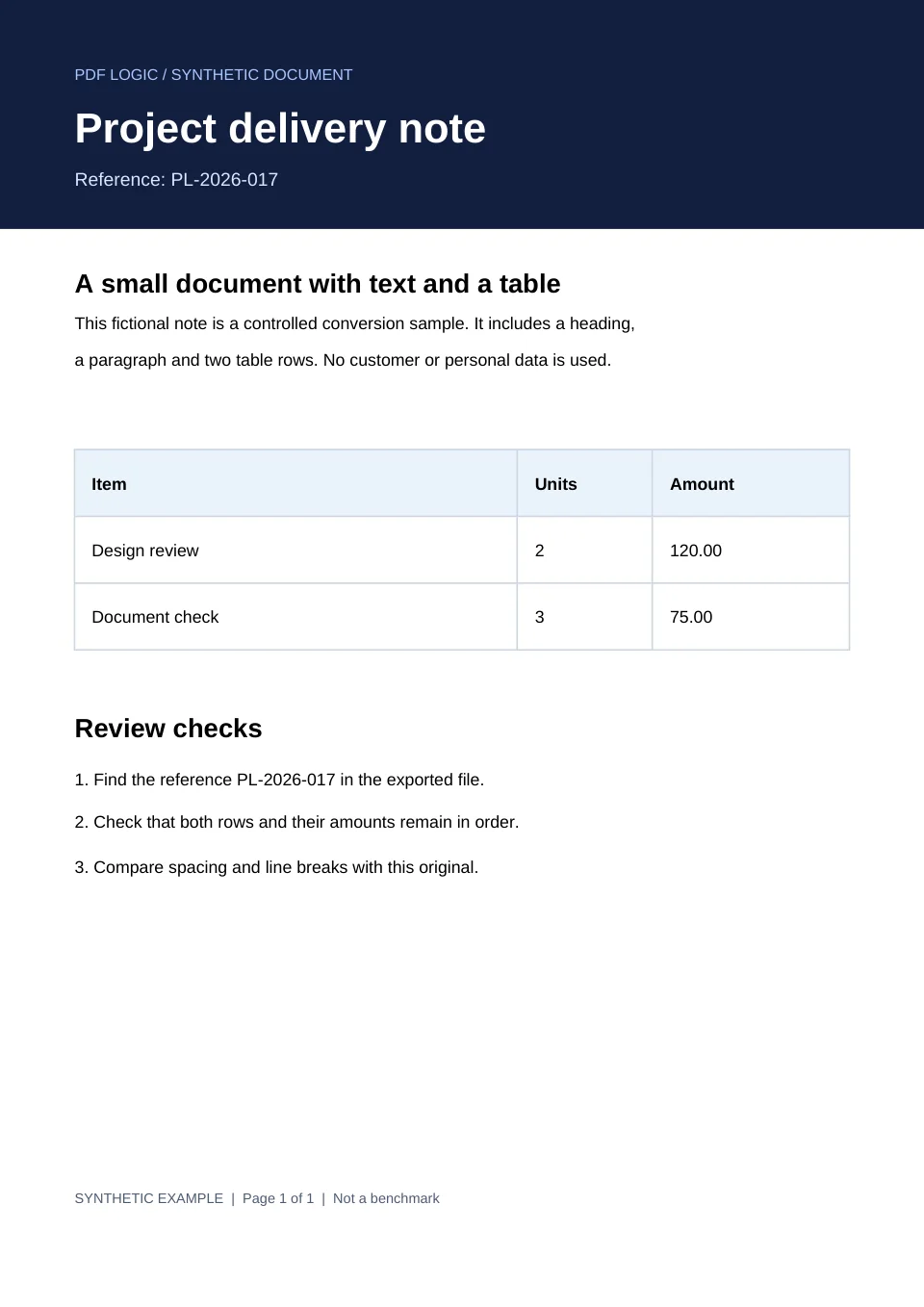
We ran a one-page delivery note through Preserve layout. It has a dark header band, a heading, a short paragraph, a three-column table with two rows, and a numbered list. In the Word file, the reference number, both table rows and their amounts arrived as editable text in the right cells. The one visible difference was the line spacing in the paragraph, which is typical. You can compare the original PDF with the converted document yourself.
Check the result before you rely on it
Open the DOCX next to the PDF and compare them in this order, which puts the costly mistakes first.
- Numbers and tables. Confirm every figure sits in the right row and column. A total that slid one cell to the left still looks like a total.
- Reading order. On multi-column pages, check that the text runs down one column before it starts the next.
- Fonts. If your computer doesn’t have a font the PDF used, Word swaps in another, and lines and page breaks move. Install the font or choose a close match.
- Headers, footers and page numbers. These often arrive as ordinary text in the body. Delete them and add real ones from Word’s Insert menu.
- Recognized text. On scanned pages, proofread names, dates and amounts. OCR confuses look-alikes such as 0 and O or 1 and l.
Fix the most common problems
Text is trapped in invisible tables
To hold text in position, the converter sometimes places it in borderless tables. Typing then behaves oddly because you are inside a cell. Click in the text and choose View Gridlines on Word’s Table Layout tab to see the table, then Convert to Text on the same tab to release it.
Every line ends with a paragraph break
Extract text only copies the page line by line, so each line of the PDF becomes its own paragraph in Word. To rejoin them, select the affected text, open Find and Replace, and replace ^p (Word’s code for a paragraph mark) with a space. Work through one section at a time so that the real paragraph breaks survive.
A table lost merged cells or shifted columns
In a PDF, a table is only ruled lines and text that happens to line up. A merged cell is simply a place where a line is missing, and a borderless table has no lines at all, so the converter has to infer the grid. When the data matters more than the look, run the page through PDF to Excel, where you can review and correct cells before export, then paste the table into Word.
Preserve layout refuses a scanned page
A scan has no text to position, so there is no layout to rebuild. Switch that file to Extract text only and let the tool recognize the text. If what you really need is the scan itself made searchable, with the page looking exactly as it does now, use OCR PDF and choose Searchable PDF instead of converting to Word.
The PDF is locked or damaged
A password-protected PDF has to be unlocked before it can be converted, and you need its password to do that. The workspace links straight to Unlock PDF, or to Repair PDF if the file is corrupted.
When a different tool is the better choice
- You only need to change a few words. Edit PDF changes text directly in the PDF, in your browser, with no conversion. See our guide to editing existing PDF text.
- You need the numbers, not the prose. PDF to Excel is built for tables, and the table review guide shows the workflow.
- The document is confidential. Microsoft Word can open a PDF directly (File, Open) and convert it on your own computer. The result has the same kinds of flaws, but the file stays on your machine.
- The layout is the product. For brochures, posters and magazine pages, go back to the designer’s source file. No converter rebuilds those well.
When you have finished editing, Word to PDF turns the document back into a PDF.
Frequently asked questions
Is my PDF uploaded when I convert it?
Yes. The conversion runs on our server, so the file is uploaded when you select Convert to Word, and the temporary copy is deleted when the job finishes. Only the text recognition for scanned pages happens in your browser.
Why does the Word file look different on another computer?
Fonts. Word lays the text out again on every machine, using whichever fonts are installed there. If one is missing, the substitute has different letter widths and the line breaks move. In Word for Windows you can embed fonts in the file under File, Options, Save.
Can I convert a scanned PDF and keep its layout?
Not with this tool. Scanned pages convert as text only, without images or positioning. A straight, sharp, high-contrast scan gives far fewer recognition errors; how OCR works explains what helps.
How many files can I convert at once?
Up to 10 PDFs per batch, each up to 30 MB and 100 pages, with 100 MB in total. Files convert one at a time, and finished results stay available if a later file fails.
Worked example
A delivery note converted to Word
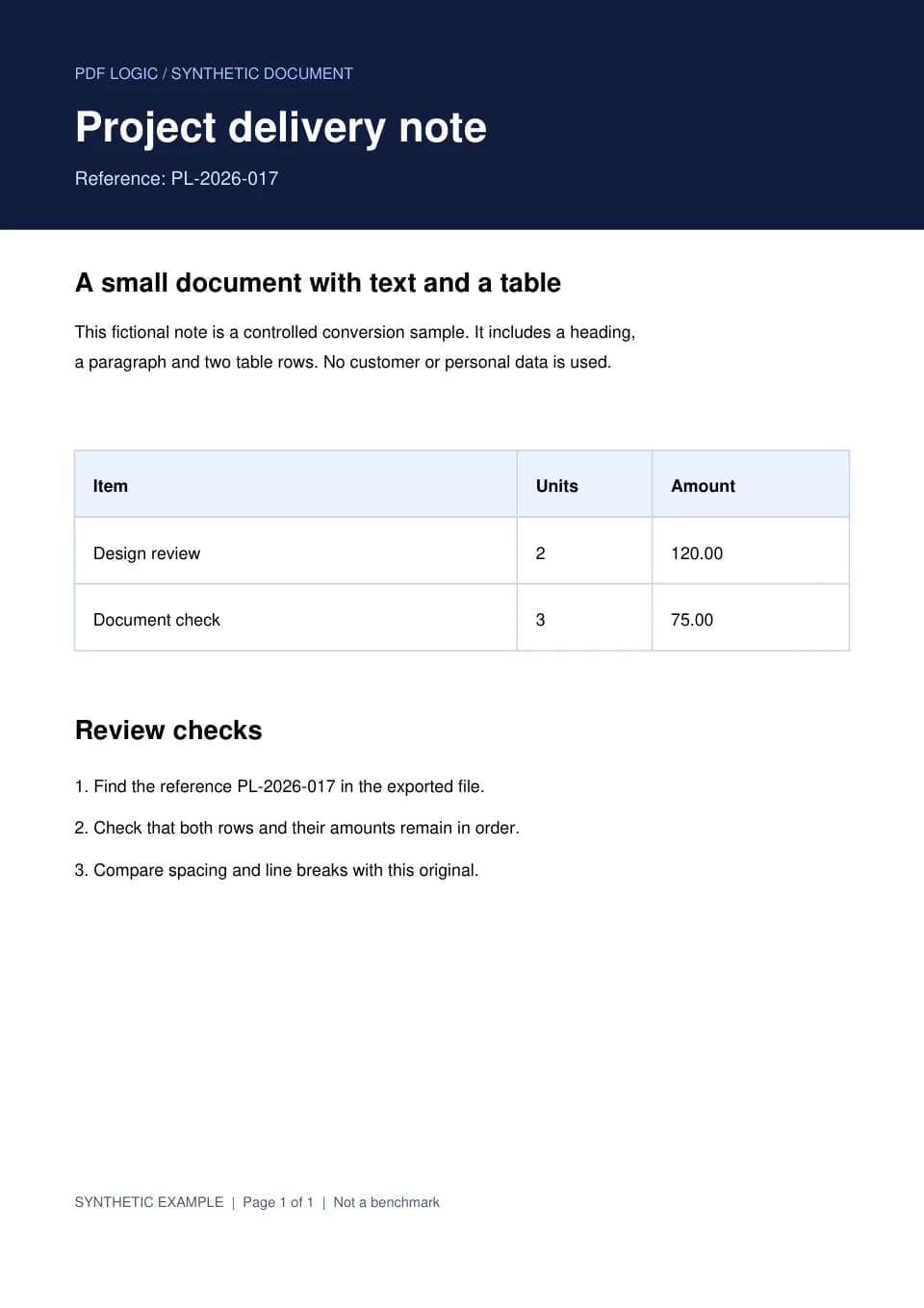
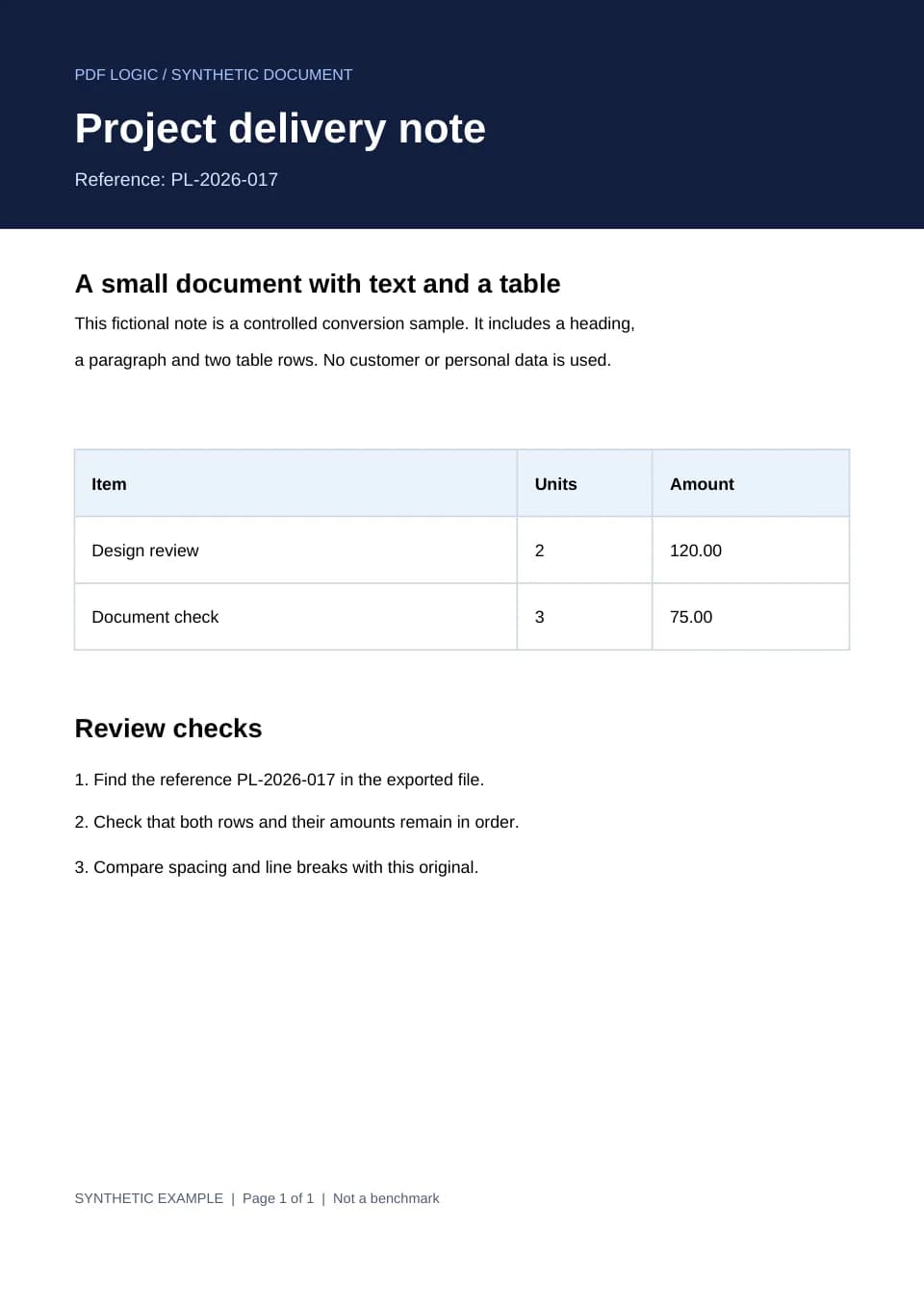
We converted a one-page delivery note in layout mode. The Word document kept the reference number and both table rows. The second image shows that document opened in LibreOffice.
Files from this example
Download them to compare the result with the original, or to try the same steps yourself.
Try it
Tools for this guide
Each one is free and works without an account.
Spotted a mistake or something out of date? Tell us and we will fix it. Our editorial policy explains how these guides are written.