How to Extract Pages from a PDF
Pull the pages you need out of a long PDF as one new file, one file per page, or several sections at once. Covers range syntax and what to check afterward.
By the PDF Logic team at Appzotech
Published Updated 7 min read
On this page
What extracting pages does
Extracting pages makes a new PDF that contains only the pages you choose. The original file isn’t touched. The pages themselves are copied as they are: text stays selectable, images aren’t recompressed and nothing is redrawn, so there is no loss of quality.
People do this to send one chapter of a report, pull a single invoice out of a month’s batch, drop a cover sheet, or get a file under an upload limit by leaving out pages the recipient doesn’t need.
Split PDF does the work in your browser. Your file is opened from your device and the new PDF is built there, with no upload.
Pick the method that fits the job
Split PDF has five methods. Choosing the right one first saves fixing the output afterward.
| You want | Split method | You get |
|---|---|---|
| A few pages in one new file | Extract pages | One PDF |
| Each chosen page as its own file | One PDF per page | Numbered PDFs |
| A document cut at chapter boundaries | Split visually | One PDF per section |
| Specific page sets, each with its own name | Custom groups | One PDF per group |
| Equal chunks, such as every 10 pages | Every N pages | PDFs of N pages; the last holds the remainder |
Extract pages into one PDF
- Open the file. Go to Split PDF and choose one PDF, up to 50 MB. Thumbnails of its pages appear.
- Choose the method. In Split settings, under Split method, select Extract pages.
- Select the pages. The Selected pages box starts with the whole document. Replace it with what you want, such as 2-3 or 1-3, 5, 12-15. You can also select None and then click thumbnails; Shift-click adds a run of pages. All, Odd, Even and Invert are there for quick selections.
- Check the plan. “Files you’ll get” lists the output file and its pages, and tells you how many source pages are left out. Click the file to preview it.
- Name and create. Edit Output filename if you like, then select the Extract button, which shows the page count (for example, Extract 2 pages).
- Download. The result window shows the page count and file size. Preview the file once more, then download it.
Writing page ranges
5is a single page.2-6is pages 2 through 6. Ranges must run upward.1-3, 8, 12-15combines ranges and single pages.9, 7puts page 9 before page 7. The output follows the order you type, and a page listed twice appears twice.
Page numbers mean positions in the file, not the numbers printed on the pages. In a report with a cover and a contents page, the page printed as “1” may be the third page of the PDF. Check the thumbnails before you type a range.
Split into several files at once
Split visually is the quickest way to cut a document into sections. Click Split here below the last page of each section, or type a number into “Add a split after page”. Everything after a split point starts a new file.
Custom groups gives each output file its own Pages box and Filename. Select Add group for each file you need, up to 200. Use it when the sets overlap or skip around, for example pages 1-4 for one client and 1, 9-12 for another.
Every N pages asks for Pages per PDF and shows the result before you commit, such as 30 pages becoming 6 PDFs. One PDF per page turns each selected page into a separate file, which suits a stack of scanned receipts or certificates.
When a run produces more than one file, you can download them one by one or select Download all ZIP. A single run can create up to 200 PDFs, 10,000 pages and 100 MB of output.
A worked example
We took a four-page sample packet whose pages were already stamped “Page 1 of 4” to “Page 4 of 4” and extracted pages 2-3. The new file has two pages, Section A followed by Section B, looking exactly as they did in the original.
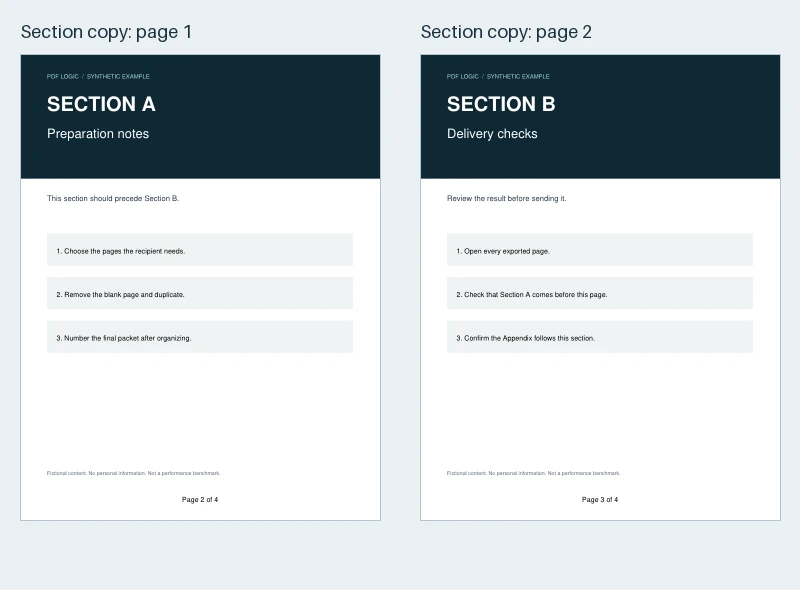
The footers show the catch. Printed page numbers are part of each page’s content, so they don’t renumber themselves. If the extract needs its own numbering, start from a copy without page numbers, extract, then add fresh numbers with Page Numbers. You can download the four-page sample and the extracted result to compare.
What happens to bookmarks, links and forms
- Bookmarks and links that point to pages you kept still work. Those that pointed to pages you left out are removed, so nobody clicks into a dead end.
- Form fields on kept pages stay fillable. One limit: a page with form fields or annotations can’t appear twice in the same output.
- Document properties such as title and author carry over to the new file. Check them if the original title describes more than you are sharing.
- Digital signatures don’t survive, because an extract is a different document from the one that was signed. Split PDF warns you and asks before it creates the copy.
When Split PDF can’t change a file
The PDF is tagged or uses custom page labels
Some PDFs carry extra structure: accessibility tags that tell screen readers the reading order, or page labels such as i, ii, iii for front matter. Removing pages without rebuilding that structure would leave it pointing at pages that no longer exist, so Split PDF stops and tells you. A desktop editor such as Adobe Acrobat can extract pages from tagged files. If you don’t need the tags, printing the pages you want to PDF from your viewer makes a plain copy, at the cost of bookmarks, form fields and accessibility information.
The PDF is password-protected
Remove the password with Unlock PDF first. You need the current password to do that.
The output is larger than you expected
Extracted files are usually much smaller than the source, but fonts and images shared across the document can travel with every part. If a file is still over a limit, run it through Compress PDF. Our guide to reducing PDF file size covers the other options.
Check the result
- Confirm the page count matches what you selected.
- Look at the first and last page of each file. Off-by-one mistakes show up at the edges.
- Search for a word you know is there, to confirm the text is still selectable.
- Click one bookmark or link if the document has them.
When another tool is the better choice
- You are removing a few pages from a long file. In Organize PDF, select the unwanted pages and choose Delete, or select the ones you want and choose Extract. It also reorders and rotates in the same pass. See organizing large PDFs.
- You need pages from several PDFs in one file. Extract from each, then combine the parts with Merge PDF. The merge guide covers ordering.
- You need to hide part of a page. Extraction removes whole pages. To remove a paragraph or a number from a page you are keeping, use Redact PDF.
- You want pictures of the pages. PDF to JPG saves pages as JPG or PNG.
- You work offline. Preview on a Mac and Adobe Acrobat both extract pages without a browser.
Frequently asked questions
Does extracting pages reduce quality?
No. Pages are copied, not re-rendered. Text remains text and images keep their original resolution.
Is my PDF uploaded when I split it?
No. Split PDF and Organize PDF both run in your browser, so the file stays on your device. Our guide to browser and server processing shows how to confirm that yourself.
Can I pull out pages in a different order?
Yes. Type them in the order you want, such as 12, 3-5, 1. For heavier rearranging, Organize PDF lets you drag pages into place.
How many pages or files can I create in one go?
Split PDF takes one PDF of up to 50 MB and can produce up to 200 files, 10,000 pages and 100 MB of output per run. For a bigger job, work through it in more than one run.
Worked example
Extract two sections and check the retained numbering
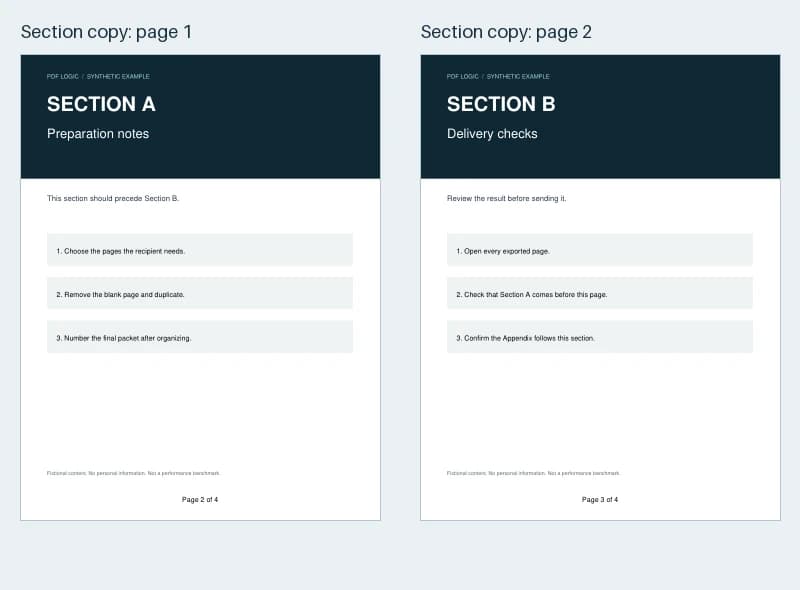
Pages 2 and 3 of the numbered four-page packet became one two-page PDF. Its headings are Section A and Section B, and its footers still read Page 2 of 4 and Page 3 of 4.
Files from this example
Download them to compare the result with the original, or to try the same steps yourself.
Try it
Tools for this guide
Each one is free and works without an account.
Spotted a mistake or something out of date? Tell us and we will fix it. Our editorial policy explains how these guides are written.