Make French and German Scanned PDFs Searchable with OCR
Select French or German OCR, choose searchable PDF instead of TXT, and check accents, umlauts, dates and reference numbers in the result.
To make a French or German scan searchable, open OCR PDF, select the document’s language and choose Searchable PDF before processing. PDF Logic defaults to Plain Text output and selects one language at a time. OCR recognizes characters in an image; it does not translate the document or certify the accuracy of the result.
This workflow is useful for looking up a reference in scanned correspondence or finding a term in a printed document. Before starting, try selecting a sentence in a PDF viewer: a document that already has usable text may not need another OCR pass.
Prepare a readable scan
Use a clear, upright source with complete page edges and readable small print. If the source is blurred or cut off, a better scan is more useful than repeatedly running recognition on the same image. Tesseract’s official image-quality guidance explains how resolution, noise and skew affect recognition; checked September 8, 2026.
Keep the original scan so you can compare disputed words against it. A correct-looking search result is not enough evidence for a date, amount or identifier: inspect the page image as well.
Select the language and output
- Open OCR PDF and select a PDF within the displayed upload limit.
- Under Document Language, select French for French text or German for German text.
- Choose Plain Text if you want a TXT file to read or edit. Choose Searchable PDF if you want a PDF with recognized text associated with the scanned pages.
- Run recognition and download the result.
- Open the output and test both search and copy-and-paste using words you can verify in the scan.
Recognition runs in your browser. Searchable PDF output then uploads the original PDF and recognized word positions to the server to create the text layer. Plain Text output follows the browser recognition path. Review the privacy policy and your organization’s document-handling requirements before processing personal or confidential material.
Worked example: check French accents
We created a one-page image-only French test document containing “Référence : FR-2026-014” and “Réunion prévue le 8 septembre 2026.” The screenshot shows French and Searchable PDF selected in the actual application. It records the configuration, not an OCR accuracy score.
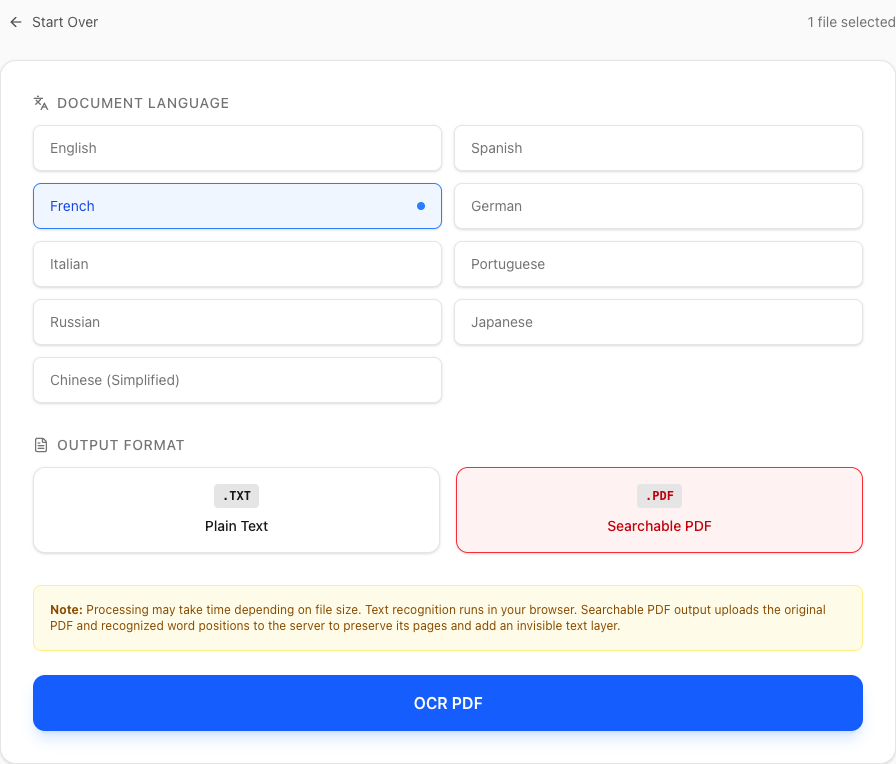
In your result, search for the reference identifier, then copy the sentence containing the date. Check the accent in “Référence”, the hyphens in the identifier and each digit. An OCR result can look plausible while substituting one character, so use exact strings rather than checking only a common word.
Repeat separately for German
Our separate German sample contains “Referenz: DE-2026-021” and the words “Größe” and “Überprüfung”. Select German for that document, run it separately and verify those characters in the output. Inspect ß and umlauts rather than assuming that a recognizable sentence preserves every letter.
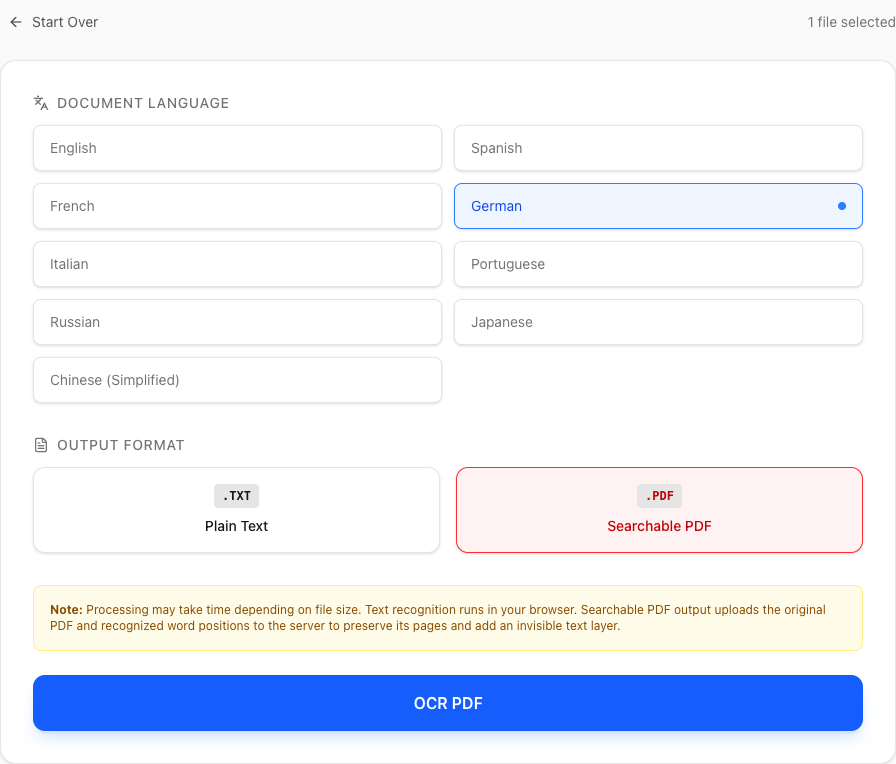
For separate French and German pages in one file, use Split PDF with Custom groups to create one page group per language in a ZIP, then recognize each PDF with its matching language. Split uploads the source for server processing. It does not detect languages or chapter boundaries automatically, so enter and verify the page groups yourself. Keep page order and references clear if you later combine results.
Understand the limits
The current interface does not offer simultaneous French-plus-German selection. A page containing both languages needs careful review with the best available language choice or a workflow that explicitly supports multilingual recognition. Handwriting, complex tables, unusual fonts and poor scans may need manual correction.
Does a searchable PDF become accessible automatically?
No. A text layer alone does not establish correct reading order, headings, table structure or accessibility compliance.
Can OCR produce a certified translation?
No. Recognition preserves the source language as text. Translation and certification require separate work.
Why did I download a TXT file?
Plain Text is the default. Return to the configuration and explicitly select Searchable PDF for a PDF result. See the OCR workflow guide for more about output choices.
Topics
Continue Reading
More articles you might find useful
USAJOBS Resume PDF: Check Page Count, File Size and Formatting
Prepare a USAJOBS resume PDF with a practical check of the two-page limit, 5 MB file limit, Letter layout and readable text before uploading.
Preparing a Europass CV PDF for Employer Uploads
Review a Europass CV PDF for employer file limits, readable text, accents and page breaks, while keeping the original CV available for future edits.
A4 vs US Letter: Preparing Documents for International Sharing
Compare A4 and US Letter dimensions, set the intended size before PDF export, and avoid clipped text when printing documents across regions.