Preparing PDF Attachments for Grants.gov Applications
Prepare Grants.gov PDF attachments with an agency-specific checklist for filenames, sizes, separate documents, page review and correct attachment controls.
Prepare each Grants.gov attachment according to the funding opportunity and form instructions, then verify that the correct file is attached in the correct place. Agency rules determine accepted formats and sizes. There is no single attachment-size rule that you should assume applies to every opportunity. The Grants.gov applicant FAQs, checked September 8, 2026, explain these differences and the attachment workflow.
This guide helps with ordinary supporting PDFs such as a project narrative. It does not cover eligibility, grant writing or changing the official application forms.
Create an attachment inventory
Before converting anything, list every required file alongside its upload field, naming rule, file limit, page limit and responsible reviewer. Copy the relevant requirements from the opportunity instructions into your working notes so the team uses the same version.
For a fictional project, that inventory might include “ProjectNarrative.pdf”, “BudgetJustification.pdf” and “SupportLetter.pdf” in three separate slots. Those are example names, not prescribed names for a real opportunity. Follow a required naming convention exactly when one is provided.
Grants.gov says agency and form naming rules take precedence. Where neither supplies restrictions, its fallback guidance limits filenames to 50 characters and an allowed character set. Duplicate filenames can cause processing problems. Give every attachment a distinct, descriptive name.
Export supporting documents and inspect them
- Finalize the editable source and preserve a copy.
- Export the requested format. If a narrative is DOCX and PDF is required, Word to PDF offers server conversion.
- Open the exported PDF and review its page count, headings, tables, figures and last page.
- Check the saved file size against the specific opportunity’s limit.
- Have the designated reviewer confirm that this is the version intended for submission.
Check text inside charts and footnotes at normal reading size. A file that opens successfully can still contain a cut-off table, substituted symbol or blank final page introduced during export. Keep the exported PDF and source clearly paired so corrections happen in the right document.
Worked example: review a three-page narrative
Our “project-narrative-demo.pdf” is a synthetic three-page Letter document containing an overview, activities and evaluation section. It is a plain PDF, not a Grants.gov form or an application submitted to an agency. The screenshot shows its three page thumbnails in Organize PDF.
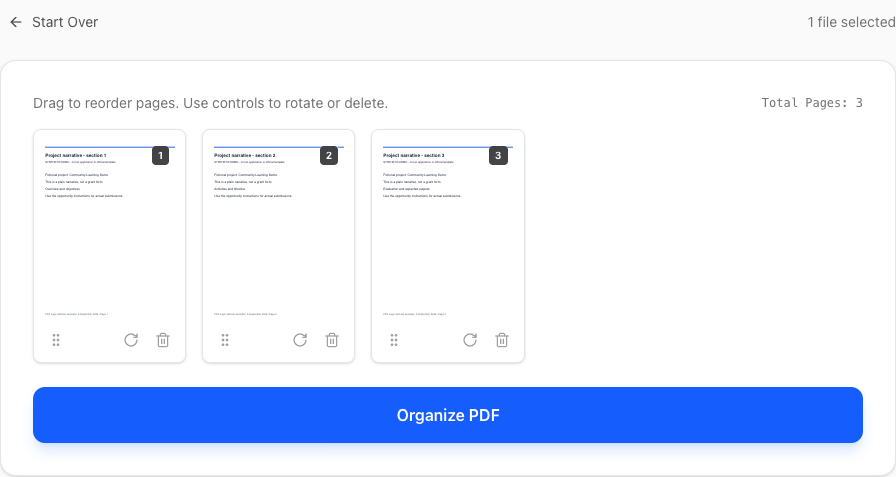
For your actual narrative, compare that page sequence with the source and the opportunity’s instructions. If a required section is missing or too long, revise the source. Reordering or deleting PDF pages does not fix an incomplete narrative.
If an ordinary, unsigned supporting PDF is too large, try Compress PDF on a copy and inspect the output before using it. Compression uploads the PDF to the server and can affect image detail. A target size is not guaranteed. Use a workflow approved for the material you are handling.
Use the application’s attachment controls
When working in an Adobe PDF application form, Grants.gov says to use the form’s Add Attachments buttons. Using a PDF viewer’s general attachment feature can leave files visible locally without transmitting them correctly to the agency.
Do not merge documents that belong in separate required slots. Keep original application forms and digitally signed files intact; general PDF rewriting can affect fields or signatures. Ask the issuing agency how to resolve a protected or problematic official document.
Review the application before and after submission
- Confirm each slot contains the intended version and each attachment has a unique name.
- Open the available application preview and inspect the attachments.
- Follow the portal’s validation and submission workflow; uploading an attachment alone does not finish the application.
- Keep the submission record and download a copy of the submitted package when available to verify its contents.
Common questions
Should I combine all supporting documents into one PDF?
Only when the opportunity explicitly asks for one combined file. A convenient combined reading copy is not necessarily the required submission structure.
Does PDF Logic validate Grants.gov applications?
No. Its tools process files. Agency requirements, application validation and acceptance remain part of the official submission process.
What if an attachment upload fails?
Record the error and inspect the file using the PDF upload checklist. For a portal or form error, use the official support channel with the opportunity and error details.
Topics
Continue Reading
More articles you might find useful
USAJOBS Resume PDF: Check Page Count, File Size and Formatting
Prepare a USAJOBS resume PDF with a practical check of the two-page limit, 5 MB file limit, Letter layout and readable text before uploading.
Preparing a Europass CV PDF for Employer Uploads
Review a Europass CV PDF for employer file limits, readable text, accents and page breaks, while keeping the original CV available for future edits.
A4 vs US Letter: Preparing Documents for International Sharing
Compare A4 and US Letter dimensions, set the intended size before PDF export, and avoid clipped text when printing documents across regions.