IRS Document Upload Tool: File Types, Size Limits and Page Limits
The IRS Document Upload Tool takes JPG, PNG and PDF files when you answer a notice or letter: up to 40 files of 15 MB each, 120 pages per file. Prepare files that go through.
By the PDF Logic team at Appzotech
Published 6 min read
On this page
The IRS Document Upload Tool lets you send documents in answer to an IRS notice or letter, as JPG, PNG or PDF files: scans, photos or digital copies. IRS guidance for its own staff adds the limits: up to 40 files, each no larger than 15 MB and no longer than 120 pages. Do not send a tax return through it, because the IRS cannot process returns sent that way. The file types and the warning about returns come from the IRS page IRS Document Upload Tool, last reviewed August 27, 2026. The size, count and page limits come from IRS interim guidance AP-08-0525-0009 for its Independent Office of Appeals. We read both on October 21, 2026. If the tool shows different limits when you use it, follow the tool.
This guide is about preparing the files. What to send, and by when, is set by your notice or letter; it is not tax advice.
Before you start
You need the notice or letter you are answering. It may give an access code for the tool; if it does not, the tool lets you pick the notice or letter number instead. The IRS warns that choosing the wrong notice from the list could delay your case, so match the number printed on your letter, usually in the top or bottom corner of the page. When the upload finishes, the tool confirms that the IRS received your documents. Save or note that confirmation.
The rules at a glance
Scroll the table to compare all columns.
| Rule | Limit | How to check your files |
|---|---|---|
| File types | JPG, JPEG, PNG or PDF | Look at the end of each file name. iPhone photos are often .heic and need converting |
| Size | 15 MB per file | Properties on Windows, Get Info on a Mac. Aim for 14 MB or less |
| Length | 120 pages per file | Count the pages of each PDF before you upload |
| Number of files | Up to 40 | Combine the pages of each document into one PDF |
| Tax returns | Not accepted through the tool | Follow the filing instructions in your notice instead |
Scan or photograph the documents
Receipts, bank statements, invoices and letters all work as scans or photos. A flatbed scanner set to 300 dpi gives clear, compact files. With a phone, lay each page flat in even light, fill the frame and photograph every page, including the back of a page with handwriting or stamps.
- Phone photos of paper: Scan to PDF straightens and crops each page and builds one PDF. Editing happens in your browser; the pages are uploaded only to assemble the PDF.
- Photos that are already clean: JPG to PDF puts them into one PDF in your browser without uploading them.
- HEIC photos from an iPhone: Convert to JPG turns them into JPGs in your browser.
- Word or Excel files: they are not on the list, so save them as PDF first, or use Word to PDF or Excel to PDF.
Keep each PDF to 120 pages
A year of statements or a long records request can run to hundreds of pages. Open the PDF in Organize PDF to see the page count, then divide anything longer than 120 pages with Split PDF. Choose fixed intervals of 120 pages, or split where one statement ends and the next begins, so each part makes sense on its own. Both tools work in your browser and upload nothing.
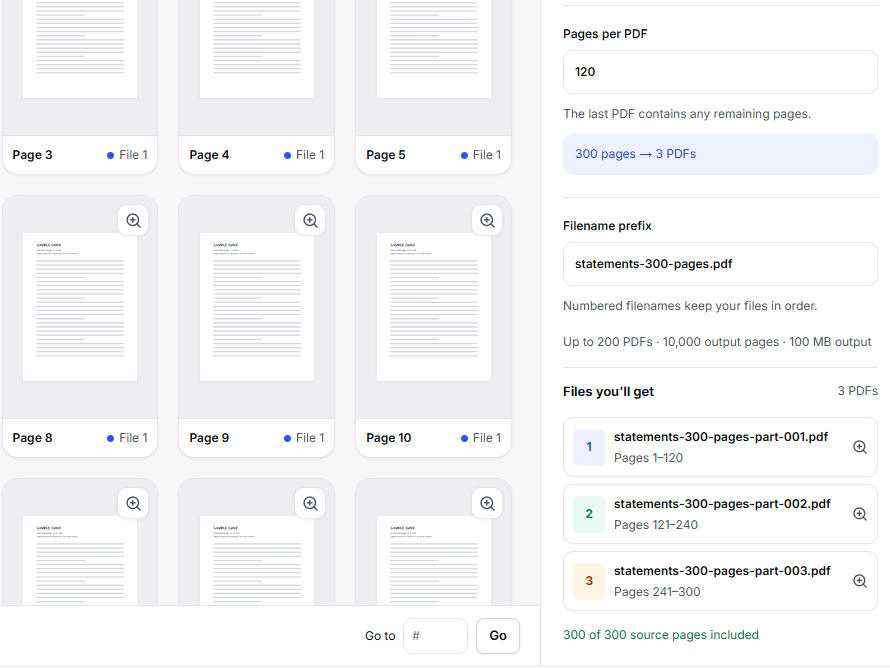
Name the parts so they read in order, such as “Bank statements 2025 part 1 of 3”.
Keep each file under 15 MB
Size comes from images: scanned pages and phone photos. If a file is over the limit:
- Scan again more lightly if you can: 300 dpi instead of 600, and grayscale for black-and-white pages.
- Compress the PDF. In Compress PDF, choose Meet a size limit, enter 14 MB, and compare the result with the original before you download it. Compress PDF uploads the file for the job, takes files up to 30 MB, and deletes the temporary copy when the job finishes.
- Or split it into two smaller files, as above.
Read the smallest print in the compressed file, such as amounts and dates. An unreadable page does not answer the notice.
Use the 40 files well
Forty files sounds like plenty until every receipt is a separate photo. Combine the pages that belong together: all of one statement, or all receipts for one expense category, in one PDF. Merge PDF combines PDFs in your browser, and JPG to PDF does the same for photos. Give each file a plain, descriptive name, such as “Receipts medical 2025.pdf”, so the person reading your response can find things.
A last check before you upload
- The notice or letter number you choose matches the one printed on your letter.
- Every file is JPG, JPEG, PNG or PDF, 15 MB or smaller and 120 pages or fewer.
- There are 40 files or fewer.
- Every page is readable, with amounts, dates and names clear.
- No tax return is among the files.
- You kept the confirmation and your own copy of everything you sent.
Frequently asked questions
Can I send my tax return through the Document Upload Tool?
No. The IRS says it cannot process tax returns sent through the tool. Follow the filing instructions in your notice or on IRS.gov.
Can I upload a password-protected PDF?
The IRS page does not say, but an IRS employee would need the password to read it. Upload an unprotected copy. If you know the password, Unlock PDF saves one; it runs on our server and deletes the temporary copy afterward.
What if I have more than 40 files?
Combine documents that belong together, as described above. If you still have more, read your notice again or call the number on it before you split the response across several uploads.
Can PDF Logic send my documents to the IRS?
No. Uploading happens on IRS.gov with your notice details. Our tools only prepare the files.
Try it
Tools for this guide
Each one is free and works without an account.
Spotted a mistake or something out of date? Tell us and we will fix it. Our editorial policy explains how these guides are written.