UK Visa and EU Settlement Scheme Uploads: File Types and Size Limits
UK visa evidence must be PDF, PNG, JPG or JPEG files, and the EU Settlement Scheme takes up to 10 residence documents of 6 MB each. Prepare files that upload first time.
By the PDF Logic team at Appzotech
Published 6 min read
On this page
When you upload evidence for a UK visa application made in the UK, photos of documents must be PNG, JPG or JPEG files, and scans must be PDF, PNG, JPG or JPEG. For the EU Settlement Scheme, you can upload up to 10 documents as evidence of UK residence, each no larger than 6 MB. Those rules come from GOV.UK’s guidance on uploading evidence as part of your visa application, last updated November 1, 2022, and on EU Settlement Scheme evidence of UK residence, last updated September 20, 2022. We read both on October 21, 2026. If the upload page in your application shows different rules, follow the page.
Applicants who give their fingerprints and photograph at a visa application centre, which is how most people outside the UK apply, use a different route. GOV.UK says they cannot use the upload service above: they upload through the commercial partner’s website or pay the partner to scan documents at the appointment, and the partner’s instructions set the limits. This guide covers preparing the files either way. It is not immigration advice.
The rules at a glance
Scroll the table to compare all columns.
| What you upload | Rule | Source |
|---|---|---|
| Photo of a document | PNG, JPG or JPEG | Visa evidence guidance |
| Scan of a document | PDF, PNG, JPG or JPEG | Visa evidence guidance |
| File name | Descriptive, such as “bank statement 2019” | Visa evidence guidance |
| Evidence after you submit | Not possible: “You cannot upload any other evidence after you submit” | Visa evidence guidance |
| EU Settlement Scheme proof of residence | Up to 10 documents, each 6 MB or smaller, as photos or scans; do not post them | EU Settlement Scheme guidance |
| A digital photo of your face, if asked for one | JPG or JPEG, 50 KB to 6 MB, at least 600 × 750 pixels, portrait, not altered or mirrored | Visa photo guidance, published February 12, 2026 |
Photograph or scan each document
GOV.UK’s advice for photos is short and worth following exactly: make sure the area is well lit and the document is in focus on your camera screen, turn the flash off for reflective documents such as a laminated passport page, and keep the full document visible. For scans, the document should lie flat against the scanner glass with nothing covering its information.
Lay each page on a plain, darker surface so its edges stand out, hold the phone straight above it, and take one photo per page. Check every photo at full size before you move on: a blurred date or a cut-off corner is easier to fix now than after a caseworker asks for it.
Convert iPhone photos before you upload
iPhones save photos as HEIC by default, and HEIC is not on GOV.UK’s list. Convert to JPG turns HEIC, PNG, WebP and AVIF photos into JPGs in your browser without uploading them. To avoid the step next time, set the iPhone camera to save JPGs: Settings, then Camera, then Formats, then Most Compatible.
The photo of your face is different. GOV.UK says it must not be altered by software, so take it with the camera already set to Most Compatible, or follow the instructions in your application, rather than converting or editing it afterward.
Keep a multi-page document in one file
A bank statement, payslip run or tenancy agreement with several pages is easiest to review as one file with its pages in order. It also uses one upload, which matters when the EU Settlement Scheme accepts 10 documents in all.
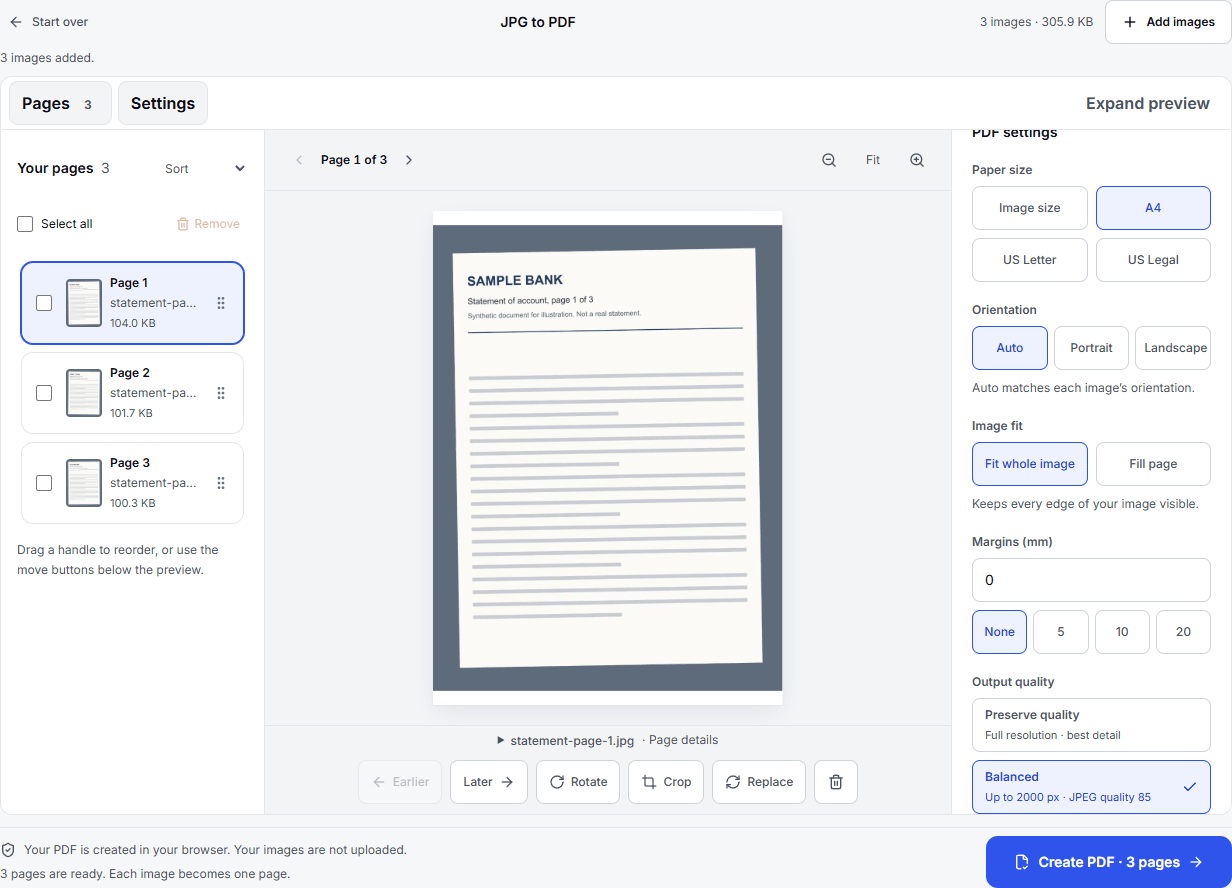
- Open JPG to PDF and add the photos of each page. The PDF is built in your browser, and the photos are not uploaded.
- Drag the pages into order, choose A4 under Paper size, and pick Balanced under Output quality to keep the file small.
- Create the PDF, check every page in the preview, and download it.
If the pages are already PDFs, Merge PDF combines them in your browser.
Keep each file under the limit
A phone photo is usually 2 to 5 MB, so a PDF built from several photos can pass the EU Settlement Scheme’s 6 MB limit. Read the size in the file’s properties, and if it is too large:
- For a PDF, rebuild it in JPG to PDF with Smaller file selected, or use Compress PDF with Meet a size limit set to 5.5 MB. Compress PDF uploads the file and deletes the temporary copy when the job finishes.
- For a single photo, Compress images brings it under a target you set in KB or MB, in your browser.
Our tools count 1 MB as 1,000,000 bytes, and some upload forms count differently, so aim a little under the limit rather than exactly at it. Read every page of the smaller file before you upload it.
A last check before you submit
- Each file is a PDF, PNG, JPG or JPEG. No HEIC, Word or ZIP files.
- Each file is within the limit for your route, 6 MB for EU Settlement Scheme evidence.
- Every page is readable and complete, corners and stamps included.
- File names say what each document is, such as “tenancy agreement 2025”.
- Everything is uploaded, because you cannot add evidence after you submit.
Frequently asked questions
Can I upload a Word document?
Not according to GOV.UK’s list, which names PDF, PNG, JPG and JPEG. Save the document as a PDF from Word, or convert it with Word to PDF.
What if I applied outside the UK?
Follow the instructions from the visa application centre’s partner, which set their own upload process and limits. The file preparation in this guide still applies: readable scans, accepted formats and sizes under the limit.
I forgot a document. Can I add it later?
Not through the upload service: GOV.UK says you cannot upload any other evidence after you submit. Check the list of documents for your route before you press submit.
Do your tools keep copies of my documents?
Convert to JPG, JPG to PDF, Merge PDF and Compress images work in your browser and upload nothing. Compress PDF uploads the file for the job and deletes it when the job finishes. Our privacy policy has the details.
Try it
Tools for this guide
Each one is free and works without an account.
Spotted a mistake or something out of date? Tell us and we will fix it. Our editorial policy explains how these guides are written.