Horizon Europe Proposal PDF: Page Limit, Formatting and Upload Rules
Part B must be an unlocked A4 PDF in 11-point type within the page limit: 40 pages in the standard RIA and IA template. Check and fix the file before the coordinator uploads it.
By the PDF Logic team at Appzotech
Published 9 min read
On this page
Part B of a Horizon Europe proposal is one PDF, built from the template for your call and uploaded by the coordinator. In the standard template for Research and Innovation Actions and Innovation Actions, the title, list of participants and sections 1 to 3 together may not exceed 40 pages, or 45 for topics funded by lump sum. Body text must be at least 11 point, on A4 pages with margins of at least 15 mm. Those figures come from version 5.1 of the European Commission’s standard application form for RIA and IA, dated January 22, 2026, which we read on October 20, 2026. Version 5.0 reduced the page limit for the 2026–2027 work programme, so an older template may show a higher number.
Other actions, such as coordination and support actions, ERC grants, Marie Skłodowska-Curie Actions and the EIC, use their own templates and limits. The template you download from the submission system for your topic is the one that counts. This guide covers the PDF itself: building it, counting its pages, meeting the portal’s upload rules and assembling annexes. It does not cover what to write.
The rules your Part B has to meet
Scroll the table to compare all columns.
| Rule | Standard RIA and IA template | What it means in practice |
|---|---|---|
| Page limit | 40 pages for the title, list of participants and sections 1 to 3; 45 for lump-sum topics | Tables, figures and references inside those sections count. Delete the template’s instruction pages before you upload |
| Font | Times New Roman on Windows, Times or Times New Roman on Apple, Nimbus Roman No. 9 L on Linux; another font is not advised | Keep the reference font so your page count matches what the experts see |
| Type size and spacing | At least 11 points, standard character spacing and at least single line spacing, including text in tables | Headers, footnotes, captions and formulas may be smaller but must stay legible |
| Page size and margins | A4, with margins of at least 15 mm on every side, not counting headers and footers | Check the paper size of any section a partner wrote on US Letter |
What happens when Part B is too long
The page limit is applied automatically, and the system does not stop you from uploading a long file. According to the template, if you upload a proposal over the limit before the deadline, you get an automatic warning advising you to shorten it and upload it again. After the deadline, the excess pages are made invisible and the experts do not consider them. The portal’s help pages describe the same thing from the other side: the file is accepted with an eligibility warning, and the pages over the limit show only a watermark.
Two more rules close the obvious loopholes. Experts are told to ignore hyperlinks to material written to extend the proposal beyond the limit, and a different font is acceptable only if it is legible and does not significantly shorten the proposal. The template also asks you not to treat the limit as a target, because experts rarely view unnecessarily long proposals favorably.
Build the PDF from the template
- Download the Part B template for your topic from the submission system, not from an old proposal. Templates for a specific call can differ slightly from the standard one.
- Keep the template’s page setup: A4, the reference font and 11-point body text. If you paste in text written on US Letter pages, check the paper size afterward. Our A4 vs US Letter guide explains why text reflows when it changes.
- Delete the instruction pages. The template includes watermarked pages of guidance that must not be submitted, and they would count against your limit.
- Export to PDF from your word processor. In Word, choose File, then Save As, and pick PDF. Do not print and scan: an exported PDF has real text that experts can search and select, and it is far smaller.
- Keep pictures at 300 dpi or less. The portal recommends a maximum resolution of 300 dpi for all graphics and text, which also keeps the file small.
Count the pages and clean up the PDF
Count pages in the PDF, not in the editing view, because the count can change on export. Organize PDF shows every page as a numbered thumbnail, so you can count to the end of section 3 at a glance and spot a leftover instruction page or a blank page at the end of a section. Select the stray pages, delete them and download the result. The tool opens the file in your browser and does not upload it.
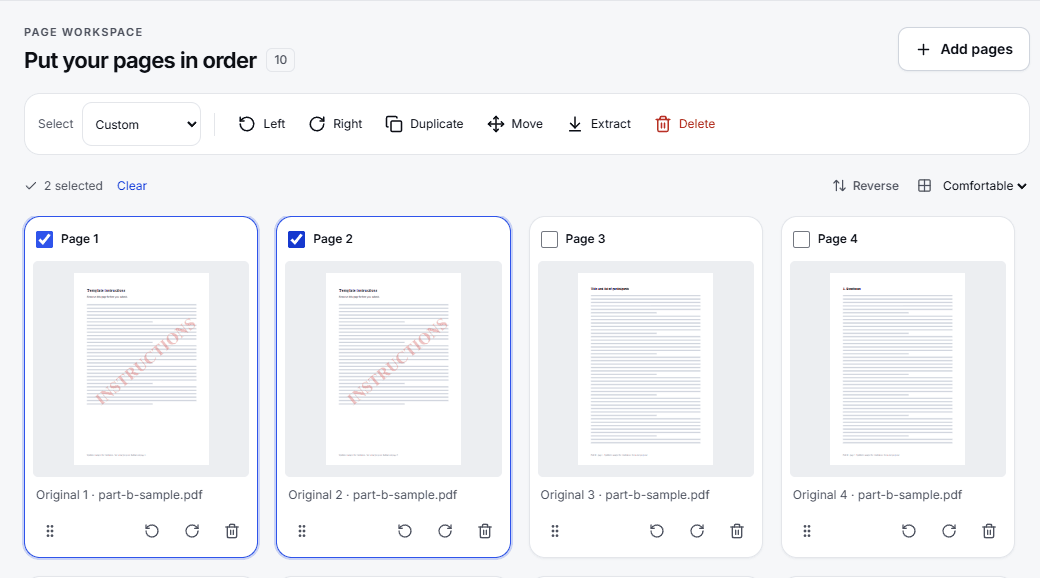
Deleting pages in the PDF is a last-minute fix. If the text itself is too long, cut it in the source document and export again, or the next export brings the problem back.
Meet the portal’s upload rules
The Funding & Tenders Portal’s help page on proposal forms, read on October 20, 2026, sets these rules for Part B and the annexes:
- Only the coordinator uploads. Partners can work on the text, but only the coordinating organisation can upload files to Part B.
- Flat PDF files only. PDF portfolios and other formats are not supported, unless the call names another format for an annex.
- No encryption or passwords. A locked file is rejected with an error. If a partner sends a protected PDF and you know the password, Unlock PDF saves an unlocked copy; it runs on our server and deletes the temporary file afterward.
- No digitally signed PDFs. A signature adds restrictions that make the portal reject the file. The portal suggests printing the document to PDF, for example with Microsoft Print to PDF, to get an unsigned copy.
- Plain file names. Use Latin letters without accents, digits, dots, dashes and underscores. The portal replaces spaces with underscores.
- Size limits depend on the call. The help page tells you to check the guidance documents on the topic page, and a file over the limit fails as soon as you upload it.
Shrink a file that is too large
A proposal is mostly text, so a large Part B nearly always means large images: a photo dropped in at full camera resolution, or a figure exported at print quality. The best fix is at the source. Replace the image with a smaller export, or use Compress Pictures in Word, then export the PDF again.
If you only have the PDF, use Compress PDF:
- Add the PDF, choose Meet a size limit and enter a number a little below the limit in your topic’s guidance, for example 9.5 MB for a 10 MB limit.
- Tick Preserve searchable text and document features, so the text stays text and the links keep working. Without it, the tool may turn pages into images to reach the size.
- Select Compress PDF, compare the result with the original and look closely at small labels in your figures.
- Download the result and count its pages again.
Compress PDF uploads the file to our server when you start the job, takes files up to 30 MB, and deletes the temporary copy when the job finishes. Compression never changes the number of pages.
Combine documents into one annex
The portal takes one file per annex category. When a category needs several documents, such as CVs or letters of support, the help page says to merge them into a single PDF of up to 10 MB.
- Open Merge PDF and add the files. Merging runs in your browser, so the files are not uploaded.
- Put them in the order the call asks for, or in the order of the participant list if it does not say, and check it with Preview page order.
- If a letter is digitally signed, Merge PDF points it out and asks you to confirm. The merged file does not keep the signature, which suits the portal’s rule against signed PDFs.
- Download the result and check its size. If it is over 10 MB, compress it as described above.
A last check before you submit
- The page count up to the end of section 3 is within your template’s limit.
- No instruction pages from the template are left.
- Pages are A4, body text is 11 point or larger, and margins are at least 15 mm.
- The PDF opens without a password and is not digitally signed.
- File names use only Latin letters, digits, dots, dashes and underscores.
- Each file is within the size limit in your topic’s guidance, and merged annexes are 10 MB or smaller.
- The uploaded file is the final one. Download it from the portal after uploading and open it to be sure.
Frequently asked questions
Can tables use a smaller font?
Not in the standard RIA and IA template: the 11-point minimum applies to body text, including text in tables. Headers, footnotes, captions and formulas may be smaller as long as they are legible. Other templates can set different rules, so read the one for your topic.
Do references and figures count toward the page limit?
Yes, when they belong to sections 1 to 3. The template counts all tables, figures, references and other elements of those sections against the limit.
Will the portal stop me from uploading a Part B that is too long?
No. It accepts the file and shows a warning. If you do not upload a shorter version before the deadline, the pages over the limit are hidden from the experts.
Can PDF Logic check whether my proposal is eligible?
No. Our tools count, clean, combine and shrink PDF files. Eligibility is decided by the call conditions and the evaluation process.
Try it
Tools for this guide
Each one is free and works without an account.
Spotted a mistake or something out of date? Tell us and we will fix it. Our editorial policy explains how these guides are written.